Browsing resources
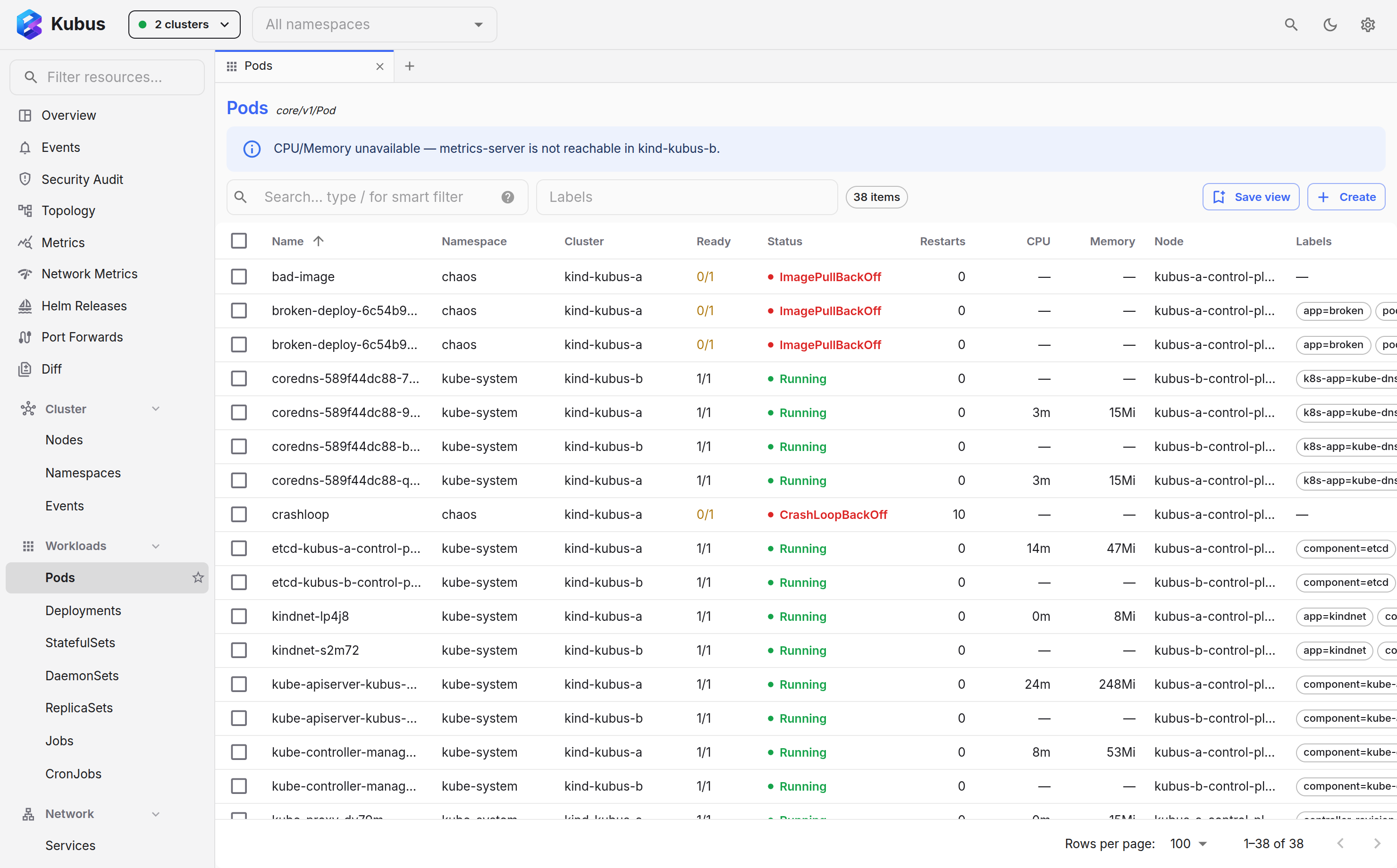
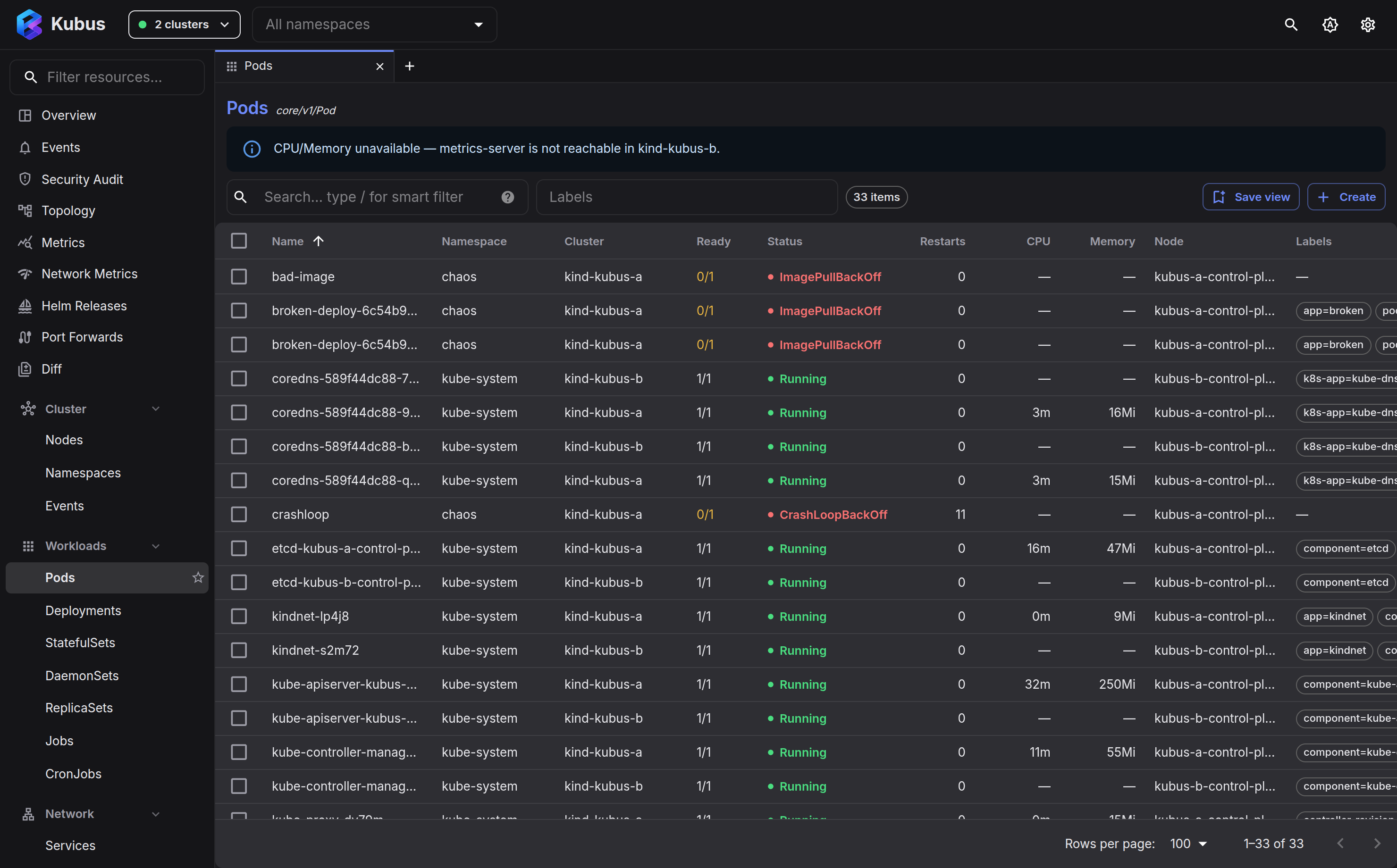
Pick a kind from the nav drawer and Kubus shows you a live list of every resource of that kind, across all your selected clusters. Lists stay in sync over a WebSocket watch. There's no refresh button because there's nothing to refresh.
Live updates
Every list is backed by an informer-style watch. New objects appear, status changes
ripple through and deletions drop out instantly, without flicker. If a watch is
interrupted (the classic Kubernetes 410 Gone), Kubus reconnects and resyncs on its
own, so you can leave a list open all day and trust what it shows.
Columns that fit the kind
Each built-in kind has hand-picked columns. Pods show readiness, status, restarts, CPU,
memory, node and age; Deployments show ready/up-to-date/available; Services show type and
ports. When several clusters are selected, a Cluster column is added automatically. It
shows each cluster as a short colored tag (kind-dev reads dev), and the clusters you
have selected never share a color. Hover a tag for the full context name.
The page header shows how many rows the list holds (12 of 62 while the search box
hides some) next to the kind's API version. Click the API version to open the resource's
API details. Create sits at the right of the header.
- Names get the room they need. The Name column is as wide as the longest name in the
list, up to about half the table. When a name still doesn't fit, Kubus cuts its
middle and keeps the end, so
broken-deploy-6c5…-2gvhgand its sibling stay different. Hover a name to see it in full. - The name and the ⋮ menu stay put. Scroll a wide list sideways and the checkbox and Name columns stay at the left edge while the row actions stay at the right.
- Sort by clicking a column header. Names sort the way you read them:
worker-2comes beforeworker-10, and a StatefulSet's pods line up asweb-1,web-2, ...,web-12. - Filter with the search box. Plain text works, or start with
/for smart filters: structured clauses like/status:crash ns:prod restarts>3, with autocomplete. - Labels get their own column. Each row shows its first labels as chips with a
+Noverflow; hover to see them all, or click a chip to filter by that label. - Add a column for any label or annotation. Click the Columns button (the column icon next to the search box), pick Label or Annotation, and choose a key. The picker suggests the keys present in the list and shows how many rows carry each one, and you can type any other key too. The new column shows that key's value per row, and you sort and filter it like any other column. Kubus keeps it with the list's other column settings (widths, visibility, sort), so it is still there after a reload, and a saved view brings it back. Remove it from the same Columns menu. Show or hide columns… at the bottom of that menu hides or brings back any of the kind's own columns.
- Copy a value with the copy button that appears when you hover a cell, or focus a cell and press Ctrl+C (Cmd+C on macOS). The shortcut always copies that one cell, even while rows are checked. To copy whole rows, use Copy rows (below).
- Drive it from the keyboard. Arrow keys or
j/kmove between rows, Enter opens one, and single keys act on the focused row:llogs,xshell,sscale,emanifest and more. - Secret values are redacted by default. Kubus never shows secret data in a list. Reveal them deliberately in the details drawer.
- Warnings find you. Objects with warning events or container restarts in the last
hour are flagged in their Status (or Ready) column. When the status already reads as a
problem, such as
CrashLoopBackOff, it gets a dotted underline: hover it for the reasons. A healthy-looking status gets a small amber marker after it instead. Kinds without a status column show the marker in a narrow Warnings column next to the name, and so does a list whose status column you hid. Every list can show that column: turn it on under Columns → Show or hide columns…, then click its header and the noisiest objects come first. While it is shown, the marker moves out of the status cell so you never see it twice. The same signal puts a count on the drawer's Events tab and a dot on a page tab whose object turned unhealthy while you were looking elsewhere. - Missing metrics are explained. When metrics-server can't be reached in one of the selected clusters, the CPU and Memory headers get a small ⓘ that names the cluster, and its rows show a dash you can hover.
Kubus remembers where you were
Nothing resets behind your back. Each kind remembers the filter, label selector and scroll position you left it with, and opening the kind again from the nav brings them back. Clearing the filter forgets it, and the empty state offers a Clear filters button when a filter hides everything. Saved views and deep links carry their own query and are never overridden.
The namespace filter is remembered per cluster too, so switching to the prod cluster lands on the namespace you use there.
Custom resources, first-class
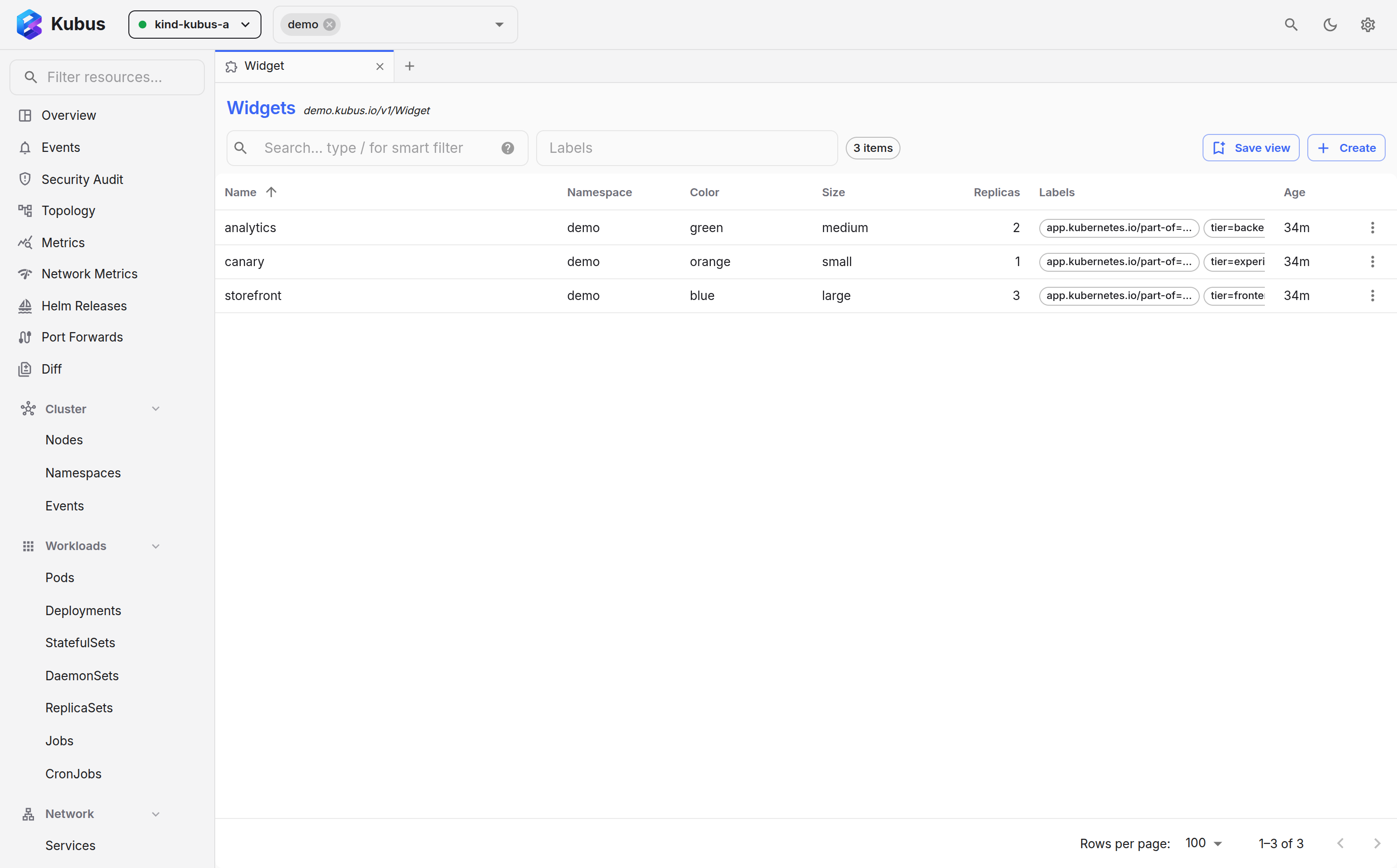
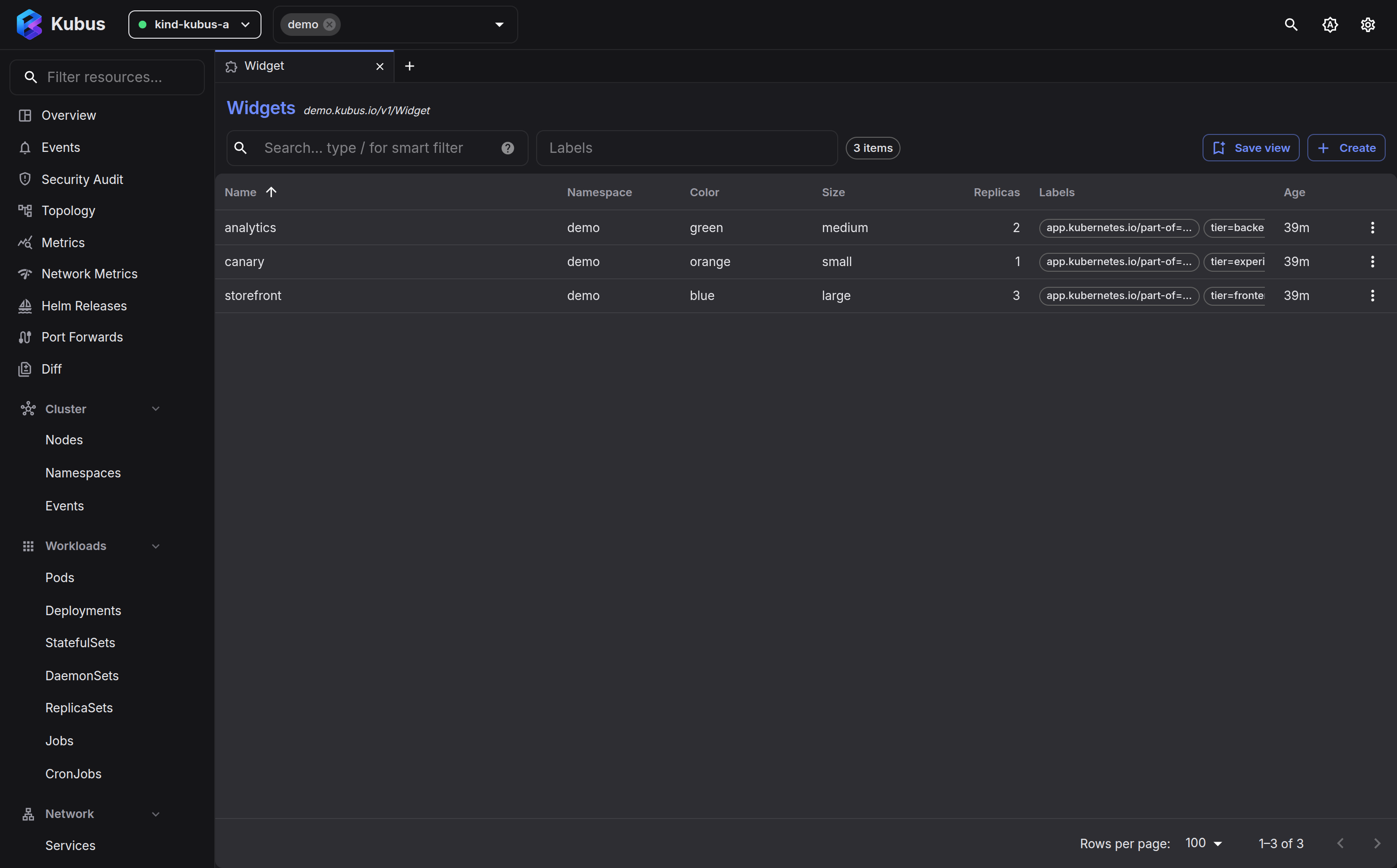
CRDs aren't an afterthought. Kubus discovers every CustomResourceDefinition in your
selected clusters and lists them under Custom Resources, grouped by API group. It also
renders each CRD's own additionalPrinterColumns (the same extra columns you get from
kubectl get) as real, sortable columns.
A printer column that points at a list shows its items separated by commas, and a
column path may escape dots inside a key the way kubectl does
(.metadata.labels.app\.kubernetes\.io/name). An empty list offers Open definition,
which opens the CRD behind it.
When Argo CD or Flux is installed, their kinds (Applications, AppProjects, Kustomizations, HelmReleases and the Flux sources) also get a GitOps group of their own in the nav drawer.
Pick the right version automatically
When a CRD serves multiple versions, Kubus prefers the most stable, newest one
(v1 over v1beta1 over v1alpha1) so you land on the version you almost certainly want.
Filtering by namespace
The namespace filter in the top bar narrows every list. Leave it empty for all namespaces; it applies across all selected clusters at once.
Saved views
If there's a list you keep coming back to, such as failing pods in prod or all
Ingresses in team-a, save it: open Views next to the search box and choose Save
view. The current kind, its filter and label selector, the namespace filter and the
table's columns, widths and sort become a saved view that appears in the nav drawer
right under its kind, one click away. The same Views menu lists the views saved for
this kind, and Reset view clears the filters and puts the columns and sort back to
their defaults. Delete a saved view from the nav drawer when you're done with it.
Acting on a row
Every row has a ⋮ menu with the actions that make sense for that kind: logs, shell, scale, restart, port-forward, delete and more. That's covered in Quick actions. To inspect instead, click the resource's name to open the details drawer.
Tick the checkboxes to act on several rows at once. A bar opens under the filter with the number of checked rows, the actions for them and Clear selection:
- Copy rows puts the checked rows on the clipboard with the columns you see, header
included. Pick TSV to paste into a spreadsheet or CSV for a file. Values are
the raw data behind each cell, so ages come out as timestamps and memory in bytes. A
value that a spreadsheet would run as a formula (one starting with
=,+,-or@) gets a leading'so it pastes as text. - Scale (Deployments and StatefulSets) sets one replica count on all of them. See scaling several workloads.
- Compare 2 appears when exactly two rows are checked and opens them side by side in the Diff page.
- Restart (Deployments, StatefulSets, DaemonSets), Logs (Pods) and Delete work the same way.
See also
- Resource details & YAML shows what's behind a row.
- Command palette jumps to any resource with Ctrl+K.