Logs
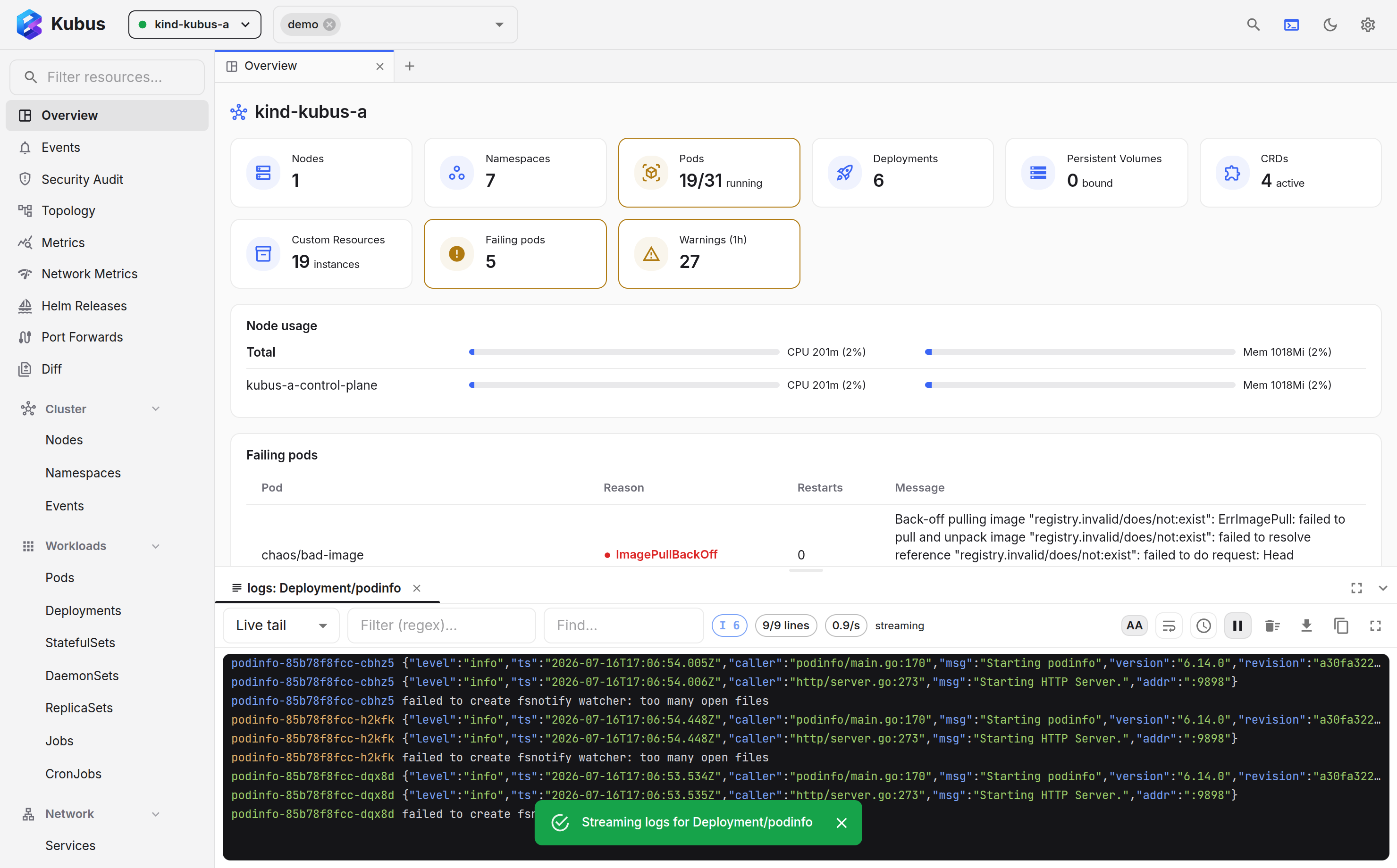
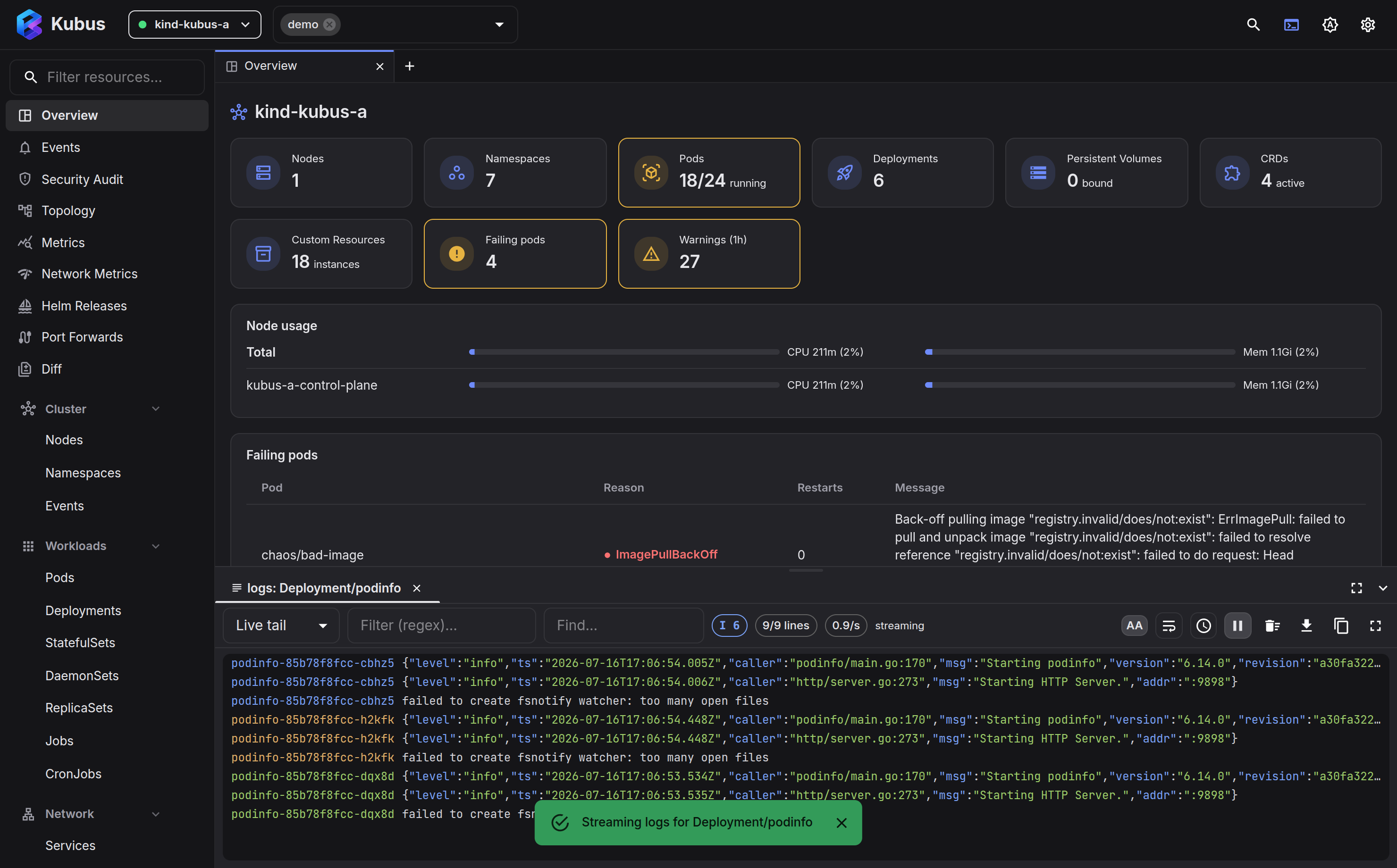
Kubus streams logs into the bottom dock and can aggregate many pods into one view.
A Deployment's logs read as a single, colour-coded stream instead of a dozen separate
kubectl logs -f windows, and the stream keeps up when the Deployment rolls out new pods.
Opening logs
- A pod: ⋮ menu → Logs.
- A workload (Deployment, ReplicaSet, StatefulSet, DaemonSet, Job): ⋮ menu → Logs aggregates every matching pod into one stream and follows the workload as its pods change.
- A Service: ⋮ menu → Logs follows the pods behind it.
- Several pods: select them in a list and click Logs (N).
- From the palette: Ctrl+K, find the resource, Tab → Logs.
Each stream opens as its own tab in the dock, so you can watch several at once. Close the focused tab with Ctrl+W / Cmd+W (desktop app).
Follow a workload through rollouts
A workload's log tab is tied to the workload, not to the pods it had when you opened it.
Kubus resolves the workload's selector on the server and watches its pods, so a
kubectl rollout restart, a scale up or a replaced pod needs no action from you:
- New pods join. A joined divider marks when a pod appeared, and its lines start as soon as its container starts.
- Old pods leave cleanly. A terminating pod's last lines, shutdown messages included, stay in the stream, followed by a terminated divider. A pod that is deleted outright gets a deleted divider. Neither counts as a connection problem.
- Containers that have not started are waiting, not failing. While a container is in
ContainerCreating,PodInitializingor pulling its image, the toolbar shows a waiting chip and the pod picker shows the reason. When no container of the tab is running yet, the connection chip itself reads waiting. - Your choices carry over. Pods you switched off in the pod picker stay off, and new
pods join switched on. The container choice (for example
appwithout itsistio-proxysidecar) applies to new pods as well, and Kubus remembers it for the workload. - Nothing shows twice. If the connection drops, Kubus reconnects and resumes every container from its last line.
Pods you select by hand with Logs (N) stay a fixed set. A single pod's tab waits for its container to start in the same way, and a pod that is deleted ends its part of the stream with a divider instead of retrying.
Time range
Pick how far back to read, from the toolbar:
| Mode | Behaviour |
|---|---|
| Live tail | Follows new lines as they arrive (the default). |
| 10m / 1h / 6h / 24h / 30d ago | Loads logs since that point, no follow. |
| Last 20k | The last 20,000 lines, split across the selected containers. |
| Terminated | The previous container's logs: what a crash-looping pod said before it died. |
Debugging a crash loop
Use Terminated to read the logs from the last run of a container that keeps restarting. The most useful lines are usually the ones from just before it exited.
Make sense of the stream
- Per-pod colour and tag: every pod gets a distinct colour, and its lines start with
a short tag, usually the random suffix of the pod name (
bp4xqrather thanpodinfo-5c7cdc845b-bp4xq). Hover a tag for the full pod and container name. The pod picker shows the same colours, so it doubles as the legend. - Time order: lines from different pods are merged by their timestamps, so the backlog each pod sends when the tab opens reads as one timeline.
- Log levels: Kubus detects each line's severity (JSON, logfmt, klog and plain formats) and shows E / W / I / D / T count chips in the toolbar. Click a chip to keep only that level, or several to combine them. Error and warning lines also get a subtle tint so they stand out while scrolling.
- Volume histogram: the strip next to the level chips shows how many lines arrived over time, one bar per time slice, stacked by level with errors at the bottom. Hover a bar for its counts and click it to jump to the first line of that moment. The strip follows your filters, so keep only E to see when the errors started. Dotted ticks mark dividers, such as pods joining and leaving. With the strip focused, Left and Right pick a bar and Enter jumps to it.
- Filter and exclude: Filter keeps only lines matching a regular expression.
Exclude hides matching lines, for example
healthz|readyzto drop health checks. Both are case-insensitive until you turn on Aa (match case) in the filter box. A pattern that is not a valid regular expression matches as plain text. - Find: highlights matches without hiding anything else. Ctrl+F / Cmd+F focuses it, Enter and Shift+Enter step through the matches.
- Pause: freezes the view while new lines keep arriving in the background. A chip at the bottom counts them, for example 142 new lines · resume; click it to catch up. Scrolling up in a live tail pauses the same way, and scrolling back to the bottom resumes. Stepping through find results or jumping from the histogram pauses too, so the line you are looking at stays put.
- Structured lines: JSON and logfmt lines show their level as a small tag and the
message first, with the remaining fields dimmed after them as
key=value. While the time column is off, the line's own time field leads the line, so a structured line never loses its time; with the column on it is not repeated. Levels are read the way logging libraries write them: names such aswarningorCRITICAL, and numbers from pino and bunyan (30is INFO,60is FATAL), syslog and Cloud Logging. FATAL, PANIC and CRIT keep their own tag rather than folding into ERROR. Text a logfmt line carries around its pairs, such as[main], stays in front of the message. Find and the filters match both what you see and the raw line. Switch to Raw in the toolbar to see the lines exactly as the containers wrote them. Each structured line also has a › toggle in front: click it, or the line, to see its fields as a table, with nested JSON keys flattened to paths such ashttp.method. Copy a single value, or the whole line as formatted JSON. - View menu: the View button holds the display settings and buffer actions:
- Syntax highlighting: Kubus recognises JSON and logfmt and highlights levels
(
error,warn, …) so problems stand out. - Wrap long lines instead of scrolling sideways.
- Timestamps: off, local time, or UTC.
- Add marker drops a marker line, for example right before you reproduce a bug. Space does the same from anywhere in the log panel.
- Clear buffer empties the on-screen buffer to start fresh.
- Syntax highlighting: Kubus recognises JSON and logfmt and highlights levels
(
Defaults for tail length, wrapping, timestamps and highlighting live in Settings → Logs & terminal.
Export
Copy and Download take the lines you can see, after filters, in one of four formats. Each menu entry shows a sample of the format built from your last visible line.
| Format | What you get |
|---|---|
| As shown | The lines as the view shows them (message first for structured lines), with the full pod and container name, time and markers. |
| Raw | Only the lines, exactly as the containers wrote them, colour codes included. |
| With timestamps | The RFC 3339 timestamp from Kubernetes and the [pod/container] source before each line. |
| NDJSON | One JSON object per line with ts, pod, container, level and message, ready for jq. |
- Maximise the dock from its title bar when you need room to read.
See also
- Shell & debug gives you a terminal when reading logs isn't enough.
- Settings holds the log defaults.