Command palette
The command palette is the fastest way to drive Kubus. One shortcut, and you can find any resource, run any action on it, or jump to any page without lifting your hands off the keyboard.
Open it
Press Ctrl+K (Cmd+K on macOS), or click the search box in the top bar.
Three modes
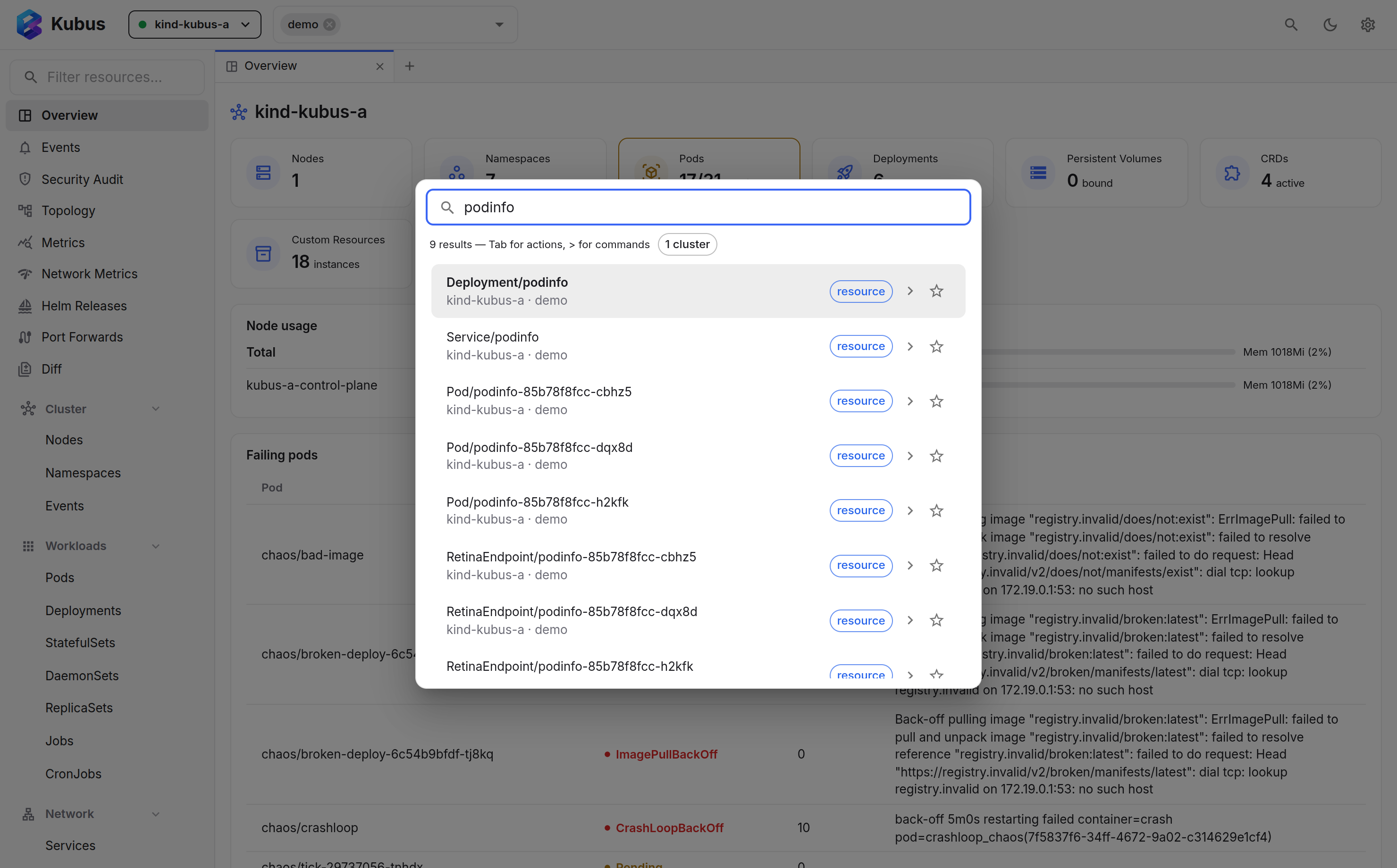
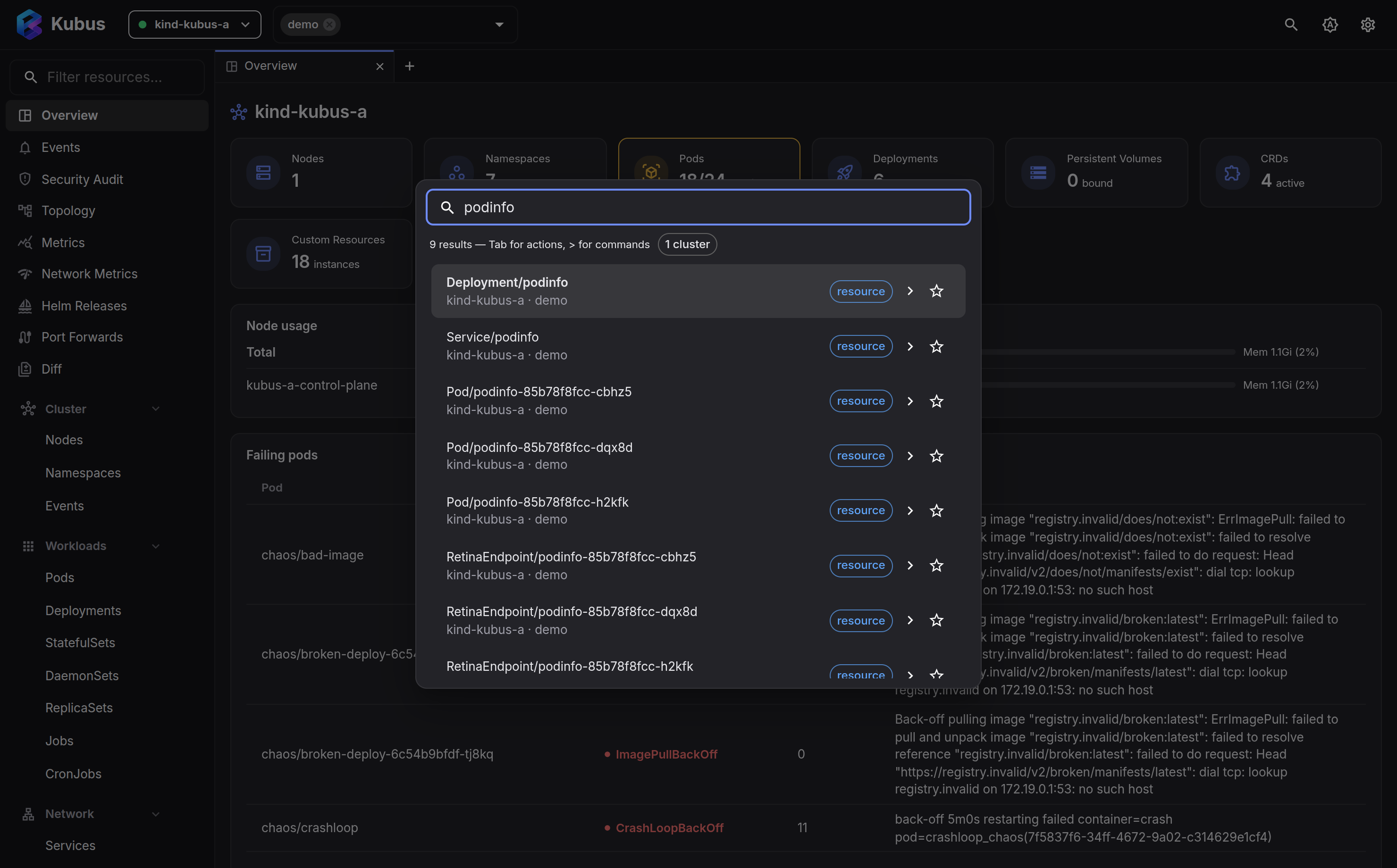
Just start typing. The palette searches across resources (of every kind, in every selected cluster), kinds, and pages. Use Up / Down to move and Enter to open.
Results are grouped the way the sidebar is (Workloads, Network, Config, Storage, Helm
& GitOps, custom resources, kinds, pages), with the group holding the best match on
top. Each row shows the kind's icon, the namespace, and for pods, workloads, nodes and
claims a live status such as Running, 3/3 or CrashLoopBackOff. The part of the
name that matched your text is highlighted.
Pods that share an owner collapse into one row (podinfo-5c7cd…, 3 Pods, 3 Running).
The counts cover every pod in the group. If only some have been checked (they are
still loading, or the results hold a lot of pods) the row says so, for example
8 Running · 8 of 20 checked. Press Enter or Right to expand it, Left to
fold it again.
With nothing typed, the palette lists your favourites, the resources you opened
recently, the pages you jump to most (with their g shortcut), and a few common
actions: switch cluster, change namespace, install a Helm chart. Star a result to pin
things you open a lot.
Highlight a resource and press Tab (or Right) to see every action for that kind: logs, shell, scale, restart, port-forward, delete and the rest. Type to filter them, Enter to run. Press Esc to step back to the search.
An action that also works as a single key on a focused list row shows that key on the right, so the palette teaches you the row shortcuts.
Type > to run app commands:
| Command | Does |
|---|---|
| Switch cluster… | Pick a cluster from a list; Enter switches to it, Ctrl+Enter adds or removes it |
| Change namespace… | Pick a namespace filter; Enter shows only that one, Ctrl+Enter adds or removes it |
| Install a Helm chart… | Open the Helm page with the install dialog |
| Toggle dark / light mode | Flip the theme |
| Toggle terminal dock | Show/hide the bottom dock |
| Go to Overview | Jump to the dashboard |
| Go to Events | Open the events timeline |
| Go to Topology | Open the topology graph |
| Go to Helm Releases | Open the Helm page |
| Go to Port Forwards | Open the forwards page |
| Go to Diff | Open the diff page |
Why it's worth the muscle memory
Once Ctrl+K is in your fingers, the workflow becomes: summon → type a pod name → Tab → logs. You skip the nav drawer, the list and the row menu entirely. It works like the command palette in your editor, and it covers the whole app.
See also
- Keyboard shortcuts lists every shortcut.
- Quick actions explains what those actions do.