Connecting clusters
Kubus works with the kubeconfig you already have. It reads the same contexts kubectl
would, and you pick which ones to look at. When you need to, you can also add and
edit clusters from inside the app, including the settings that let you reach a cluster
through a bastion or proxy.
Selecting contexts
Click the cluster switcher in the top bar and tick the contexts you want active. You can select as many as you like, and Kubus talks to all of them at once.
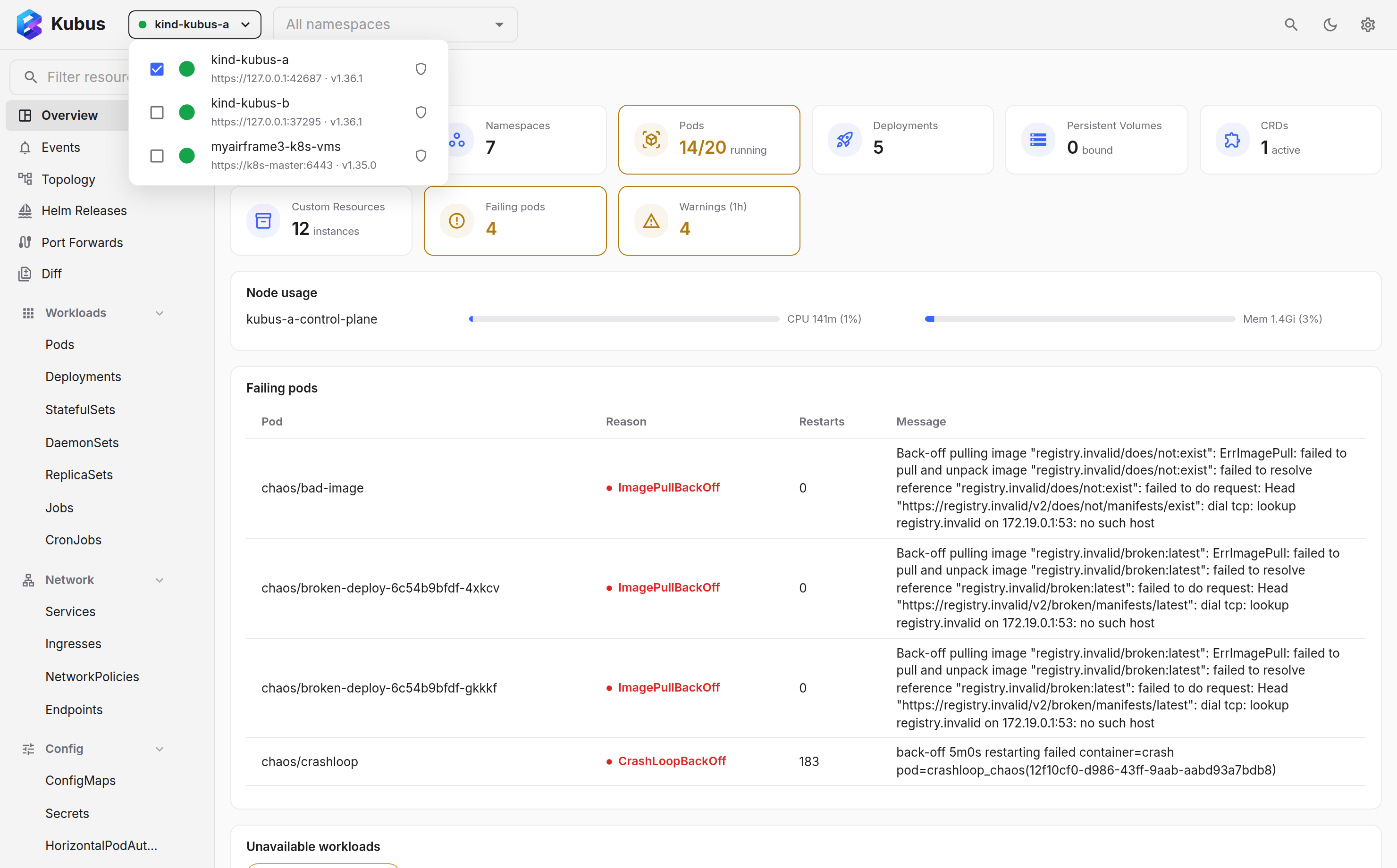
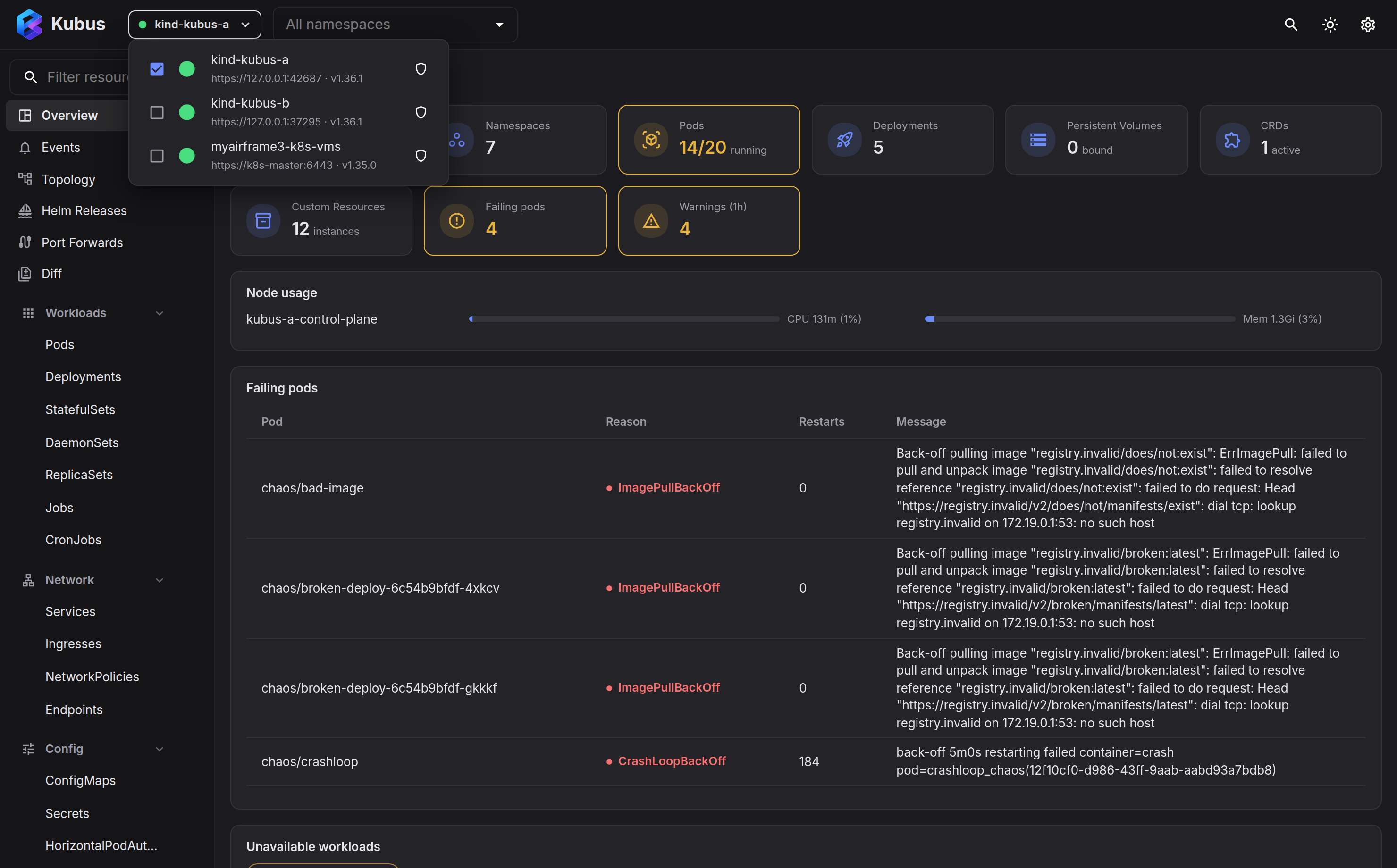
Your selection is remembered between sessions. To point Kubus at a different kubeconfig
file entirely, launch it with --kubeconfig or set KUBECONFIG. See
command-line flags.
Each context has a ⋮ menu in the switcher:
- Reconnect rebuilds the session with fresh credentials, discovery and watches, which helps after you renewed a token or the cluster came back from maintenance.
- Protect this cluster turns on the production guard. A shield next to the name shows which contexts are protected.
- Customize icon and group… gives the context an emoji and a group, so a long list sorts itself into sections such as prod and staging.
Working across many clusters
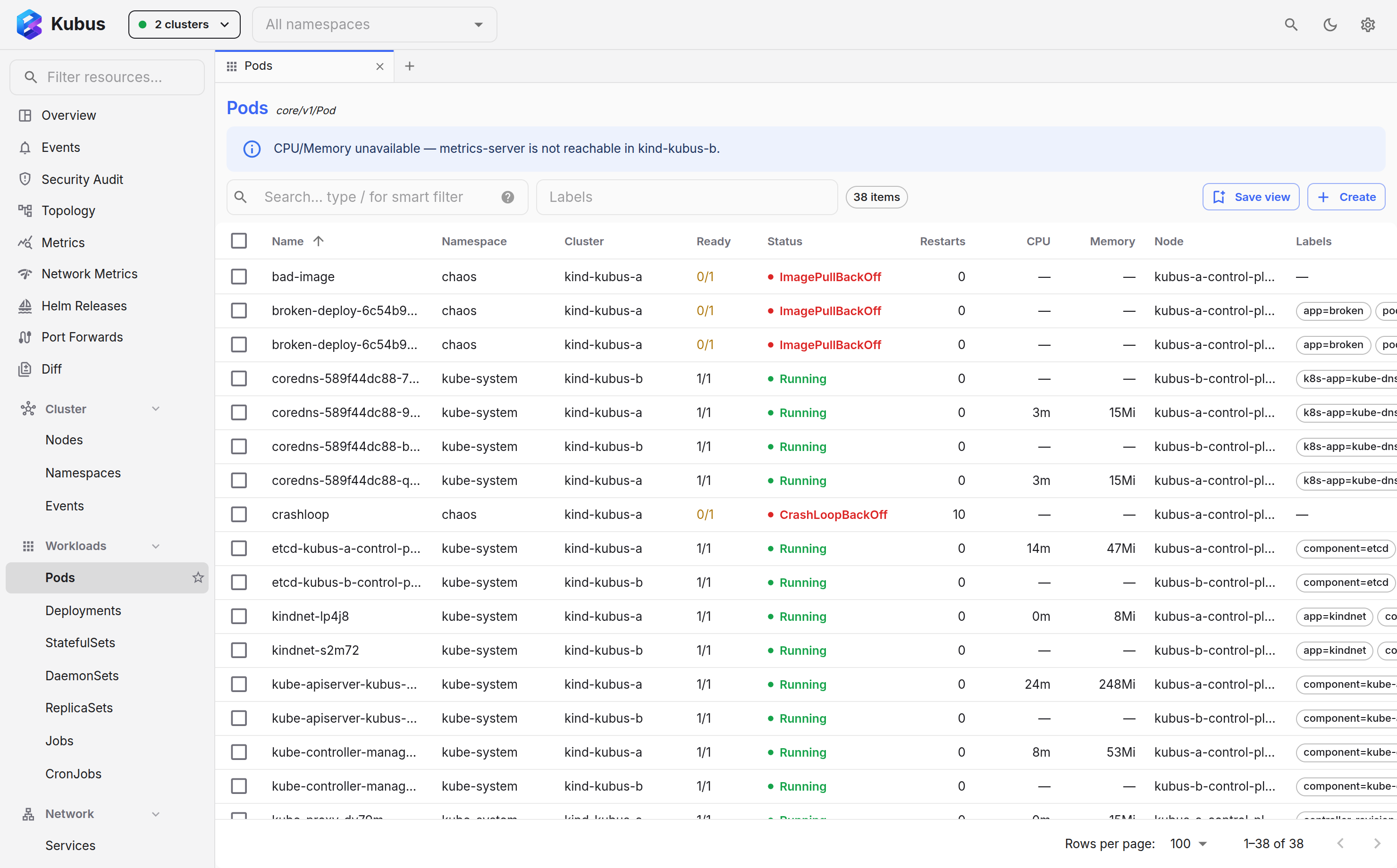
This is where Kubus earns its keep. When two or more clusters are selected:
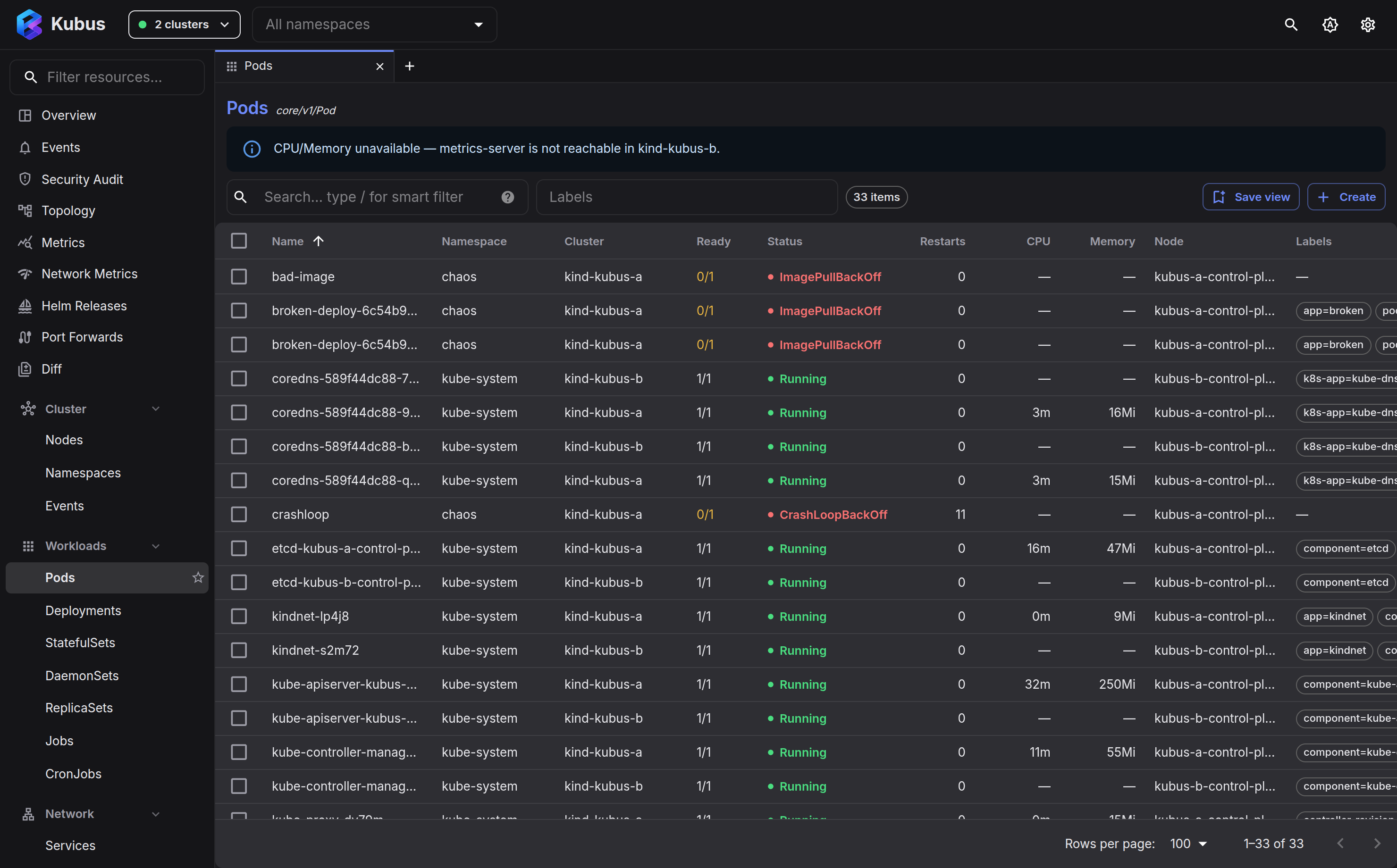
- Lists merge. A single Pods list shows pods from every selected cluster.
- A Cluster column appears, so you always know where a row lives.
- Search, events and the overview all span every selected cluster.
- Actions stay scoped. Deleting, scaling or restarting always targets the specific cluster the resource belongs to, so there's no accidental fan-out.
Compare the same thing across clusters
Looking at a ConfigMap that's supposed to be identical in staging and prod? The Diff page puts two resources from any two clusters side by side.
Filtering by namespace
The namespace filter next to the cluster switcher narrows every list to the namespaces you choose. Leave it empty to see all namespaces.
The first time you select a context whose kubeconfig entry names a namespace (the one
kubectl config set-context --namespace sets), Kubus starts that cluster's filter on it,
so a fresh install lands where kubectl would. This happens once per context. Clear or
change the filter and Kubus keeps your choice from then on.
The selection is remembered per cluster: pick team-a on the dev cluster, switch to
prod and set payments, and each cluster brings its own namespaces back when you return
to it. With several clusters selected the filter shows the union; a chip that applies to
only some of them is drawn outlined, and its tooltip names the clusters. Each cluster's
rows are still filtered by that cluster's own namespaces, so prod never shows team-a
just because dev is open next to it. Editing the filter applies to every selected cluster.
The filter applies across all selected clusters, which is handy when the same namespace
(say, ingress-nginx) exists in several of them. Clusters that don't have a matching
namespace contribute nothing to the list.
Adding, editing & removing clusters
Open Settings → Clusters to manage the entries in your kubeconfig:
- Add cluster takes a pasted kubeconfig snippet or a short form (name, API server, CA, and either a bearer token or a client certificate). For either path you can choose direct access, a Kubus-managed SSH jump host, or an existing SOCKS/HTTP proxy. The new entry is merged into your kubeconfig, and a backup is written first.
- Edit ( on any row) changes a cluster's API server, credentials, TLS settings, and the connection options below (SSH jump host / proxy). Cloud-provider clusters that authenticate with an exec plugin (EKS/GKE/AKS) keep their existing login: leave Credentials on Keep current and only the other fields change.
- Remove ( on any row) deletes the context from your kubeconfig, along with its cluster and user entries when no other context still uses them. The cluster itself is untouched, and protected clusters require typing the cluster name first.
Every change is written straight to your kubeconfig file (with a .kubus.bak backup), so
kubectl and other tools see the same settings.
Cloud-managed clusters (GKE, EKS, AKS)
Kubus treats managed clusters like any other, with one thing to understand: the kubeconfig
that gcloud container clusters get-credentials, aws eks update-kubeconfig or
az aks get-credentials writes contains no credentials at all. It only names a
credential plugin (gke-gcloud-auth-plugin, aws, kubelogin), which kubectl and
Kubus alike run to mint a short-lived token for every connection.
That means two things must be true on the machine where the Kubus server runs:
-
The plugin is installed and on
PATH.Provider Plugin Install GKE gke-gcloud-auth-plugingcloud components install gke-gcloud-auth-pluginEKS awsAWS CLI v2 AKS kubeloginaz aks install-cli -
The cloud CLI behind it is logged in (
gcloud auth login,aws sso login,az login) as an identity that may access the cluster.
If either is missing, Kubus tells you. The cluster's row in Settings → Clusters, the Edit dialog and Test connection all show what's wrong and how to fix it.
A few pitfalls worth knowing:
- Restart Kubus after installing a plugin. A running app keeps the
PATHit started with, so a freshly installed plugin isn't visible until relaunch. - Kubus running elsewhere? In a container, on a server, or under WSL, copying the kubeconfig is not enough. The plugin and a logged-in CLI must exist in that environment too. Alternatively, switch the entry to a self-contained credential (a Kubernetes ServiceAccount token).
- Don't paste short-lived tokens. A token from
gcloud auth print-access-token(orkubectl create token) dies within about an hour and you're back to 401s. Prefer the plugin-based kubeconfig, or a ServiceAccount token you control. - 401 vs 403: a 401 means the credentials were rejected (expired token, logged-out CLI); a 403 means you authenticated fine but the identity lacks permission. Kubus shows which identity the cluster resolved, so you can fix RBAC or cloud IAM for it.
- Old kubeconfig entries with an
auth-provider: gcp/azureblock predate the plugins (kubectl dropped them in v1.26) and rely on a cached token that expires after an hour. Kubus flags these. Re-run the provider'sget-credentialscommand with a current CLI to regenerate them.
Reaching clusters behind a proxy or bastion
If a cluster's API server is only reachable from your machine through a bastion, VPN, or SSH jump host, open its Edit dialog and pick a Connection under "Only if this cluster isn't reachable directly":
| Connection | What it does | Typical value |
|---|---|---|
| SSH jump host | Kubus opens and supervises an SSH tunnel to this host and routes the cluster's traffic through it. | bastion (a Host from ~/.ssh/config) or user@bastion.example.com |
| Proxy URL | Sends this cluster's traffic through an already-running SOCKS or HTTP proxy. | socks5://localhost:1080 |
There's also a Certificate hostname field for either mode: the hostname to expect on
the server's TLS certificate. Set it when the API server address is an IP or tunnel that
doesn't match the certificate (e.g. api.prod.example.com).
SSH jump host (managed tunnel)
The same Connection choice is available in Add cluster, so a cluster that's only reachable through a bastion can be set up in one go. When pasting a kubeconfig, the jump host is applied to every context the import adds.
Pick a host from your ~/.ssh/config (Kubus lists them for you) or type a destination
like user@bastion.example.com or ssh://user@bastion.example.com:2222 (no config file
needed). Kubus runs your system's OpenSSH client (ssh -N -D <port>), so everything from
your SSH setup applies exactly as in a terminal: identities, ssh-agent, ProxyJump
chains, per-host options. It works the same on macOS, Linux, and Windows (Windows needs
the built-in OpenSSH Client optional feature).
A few things to know:
- Authentication must be non-interactive. Kubus starts ssh with
BatchMode=yes, so it never hangs on a password prompt. Ifssh <host>asks for anything in a terminal, load your key intossh-agentfirst (or use a key without a passphrase). - The tunnel is self-healing. If it drops (laptop sleep, network change), Kubus respawns it on the next use, usually within a minute via the background health probe.
- Host keys: new hosts are accepted on first contact (
accept-new); a changed host key is still refused. Runssh <host>in a terminal to sort that out. - The mapping is stored in Kubus's own settings, not in your kubeconfig, so the file
stays fully
kubectl-compatible.
Already running your own ssh -D?
That still works: keep the tunnel running yourself and set Proxy URL to
socks5://localhost:1080 instead. The managed SSH jump host mode does the same
for you, and also restarts the tunnel when it drops.
The Proxy URL and certificate hostname fields map to standard kubeconfig keys
(proxy-url and tls-server-name), so they work with kubectl too. Whatever you pick,
Test connection in the dialog tells you immediately whether it works. SSH problems
come back with an actionable message (unreachable host, key not loaded, changed host key…).
Already using a proxy environment variable?
Kubus also honors HTTPS_PROXY, ALL_PROXY and NO_PROXY from the environment it's
launched in. A cluster reached that way shows an env proxy tag; saving a proxy in
the Edit dialog writes it into the kubeconfig and takes over.
Protecting risky clusters
Some clusters you'd rather not fat-finger. Mark a cluster as protected (⋮ → Protect this cluster in the switcher, or in Settings → Clusters) and Kubus requires you to type the resource name before any destructive action (delete, scale to zero, drain…). See Production guard & secrets.
See also
- Overview dashboard shows health across every selected cluster.
- Settings → Clusters is where you manage kubeconfig entries and protection.