The Kubus window
Everything in Kubus happens in a single window with four regions. Once you know them, the whole app makes sense.
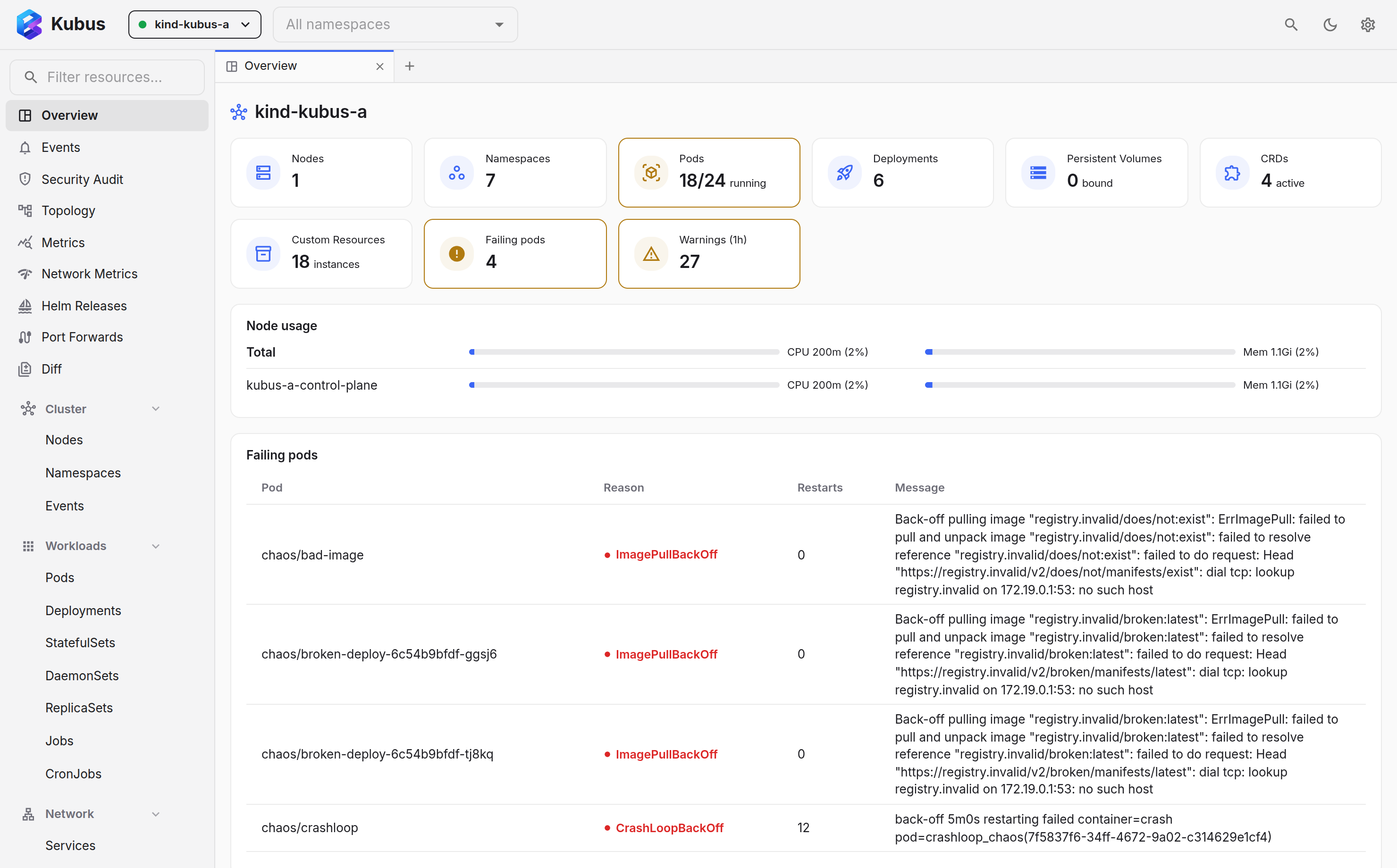
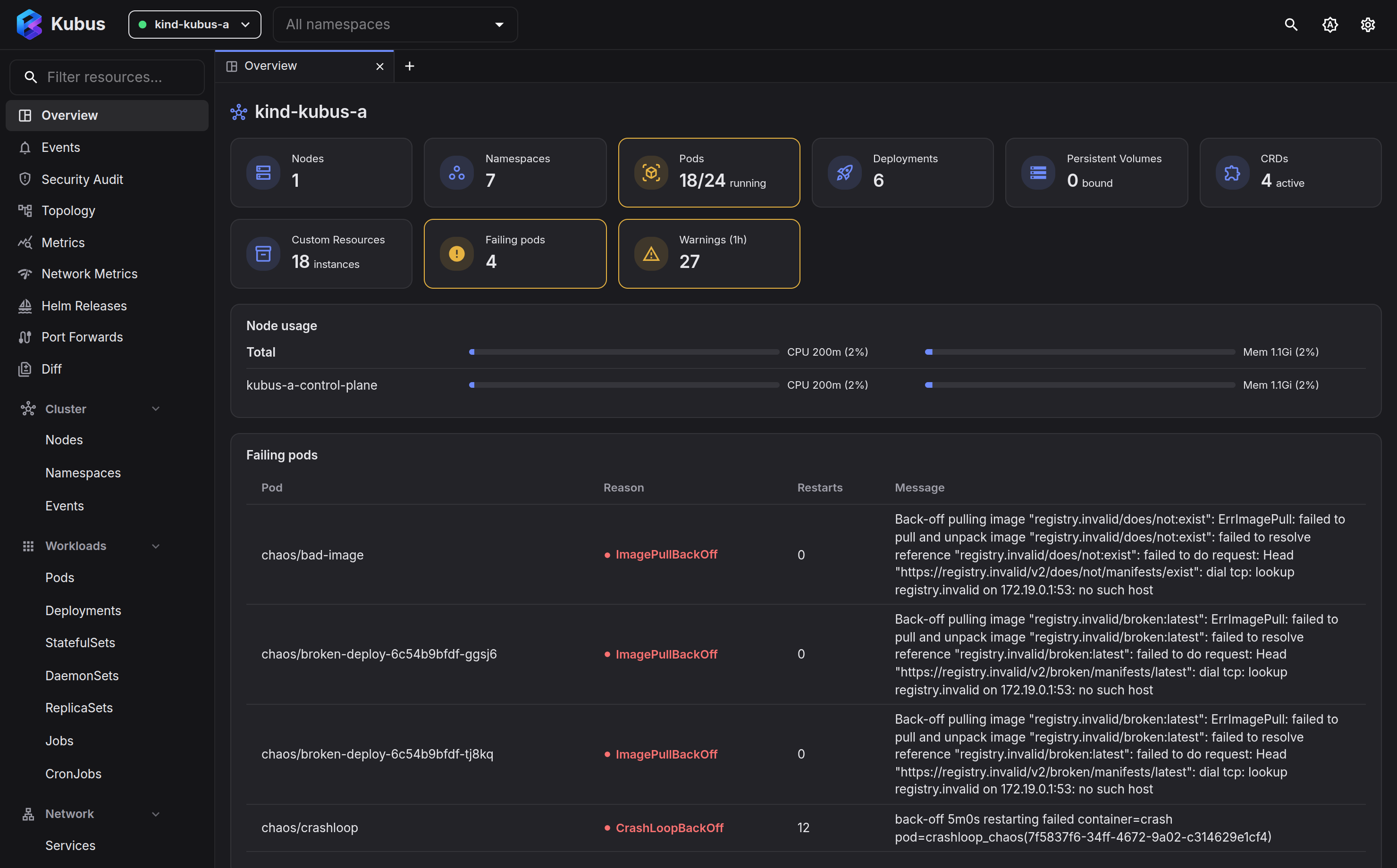
Top bar
The strip along the top is always available, whatever page you're on:
| Control | What it does |
|---|---|
| Cluster switcher | Select which kubeconfig contexts are active. More → |
Namespace filter (ns) |
Restrict every list to one or more namespaces. More → |
| Search or jump to… (Ctrl+K) | The search field in the middle opens the command palette to find and act on anything. |
| Dock () | Show or hide the bottom dock. It appears once a log or shell tab is open. |
| Keyboard shortcuts () | The shortcut cheatsheet. |
| Theme toggle | Flip between light, dark and your system theme. |
| Settings () | Appearance, refresh rate, log and terminal preferences. More → |
Navigation drawer
The left drawer starts with the Overview and the pages that span the cluster: Events, Security Audit, Topology, Metrics, Network Metrics, Helm Releases, Port Forwards and Diff. They are always there, whatever you type in the filter box. Your favorites come next, then every resource kind, grouped into Cluster, Workloads, Network, Config, Storage and Access Control. The Cluster group lists Nodes, Namespaces and the raw Event objects as a regular list, with its columns, bulk actions and saved views. A Custom Resources group is populated automatically from the CRDs discovered in your selected clusters, and a GitOps group appears when Argo CD or Flux is installed.
The kind groups start open; only the long, discovered ones (Custom Resources and More built-in kinds) start closed. Open or close any group and Kubus remembers it; the group holding the page you are on opens by itself. Kinds with problems carry a badge with the count: red when something is failing, amber when it is degraded. A closed group shows the sum of its kinds, so a badge on a closed Storage tells you to look there. The badges follow the namespace filter, like the lists do.
Built-in kinds you reach for less often, such as PriorityClasses, Leases, IngressClasses, RuntimeClasses, CSIDrivers, VolumeAttachments, webhook configurations and ValidatingAdmissionPolicies, sit in a collapsed More built-in kinds group. Kubus builds it from discovery, so it only lists the kinds your selected clusters actually serve.
- Type in the Filter kinds box at the top to jump to a kind. It searches collapsed
groups too, so typing
leasefinds Leases without opening More built-in kinds. To find a resource by name, use the search field in the top bar instead. - Saved views appear under their kind once you save a filtered list.
Content area
The middle is where the current page renders: a resource list, the overview dashboard, the Helm page, and so on. Clicking a resource opens the details drawer on the right without leaving the page.
Bottom dock
Logs and terminals open in a dock along the bottom of the window. Each log stream or shell gets its own tab, so you can keep several open at once. You can:
- resize the dock by dragging its top edge,
- maximise it to fill the window,
- toggle it with the command Toggle terminal dock (Ctrl+K →
>), - close the focused tab with Ctrl+W / Cmd+W (desktop app; with the dock empty this closes the window).
Details drawer
Click any resource name and a drawer slides in from the right with tabs for the Overview, YAML, Events and a relationship Map. Some kinds add Metrics or rollout History. Open another resource from inside it (a pod's node, a referenced ConfigMap) and Kubus keeps a back-stack so you can navigate and return.