Quickstart
This page takes you from a fresh install to browsing, inspecting and acting on a real cluster in about five minutes.
No cluster handy?
Spin up two throwaway kind clusters with sample workloads (a Helm release, some intentionally broken pods, metrics) using the bundled script described in Test clusters. They're perfect for following along.
1. Launch Kubus
Open the desktop app, or start it from source:
Kubus opens in a window (or your browser) showing the Overview page. On first launch no clusters are selected yet. That's the next step.
2. Select your clusters
Click the cluster switcher in the top bar and tick one or more kubeconfig contexts.
Kubus reads the same contexts kubectl config get-contexts shows you.
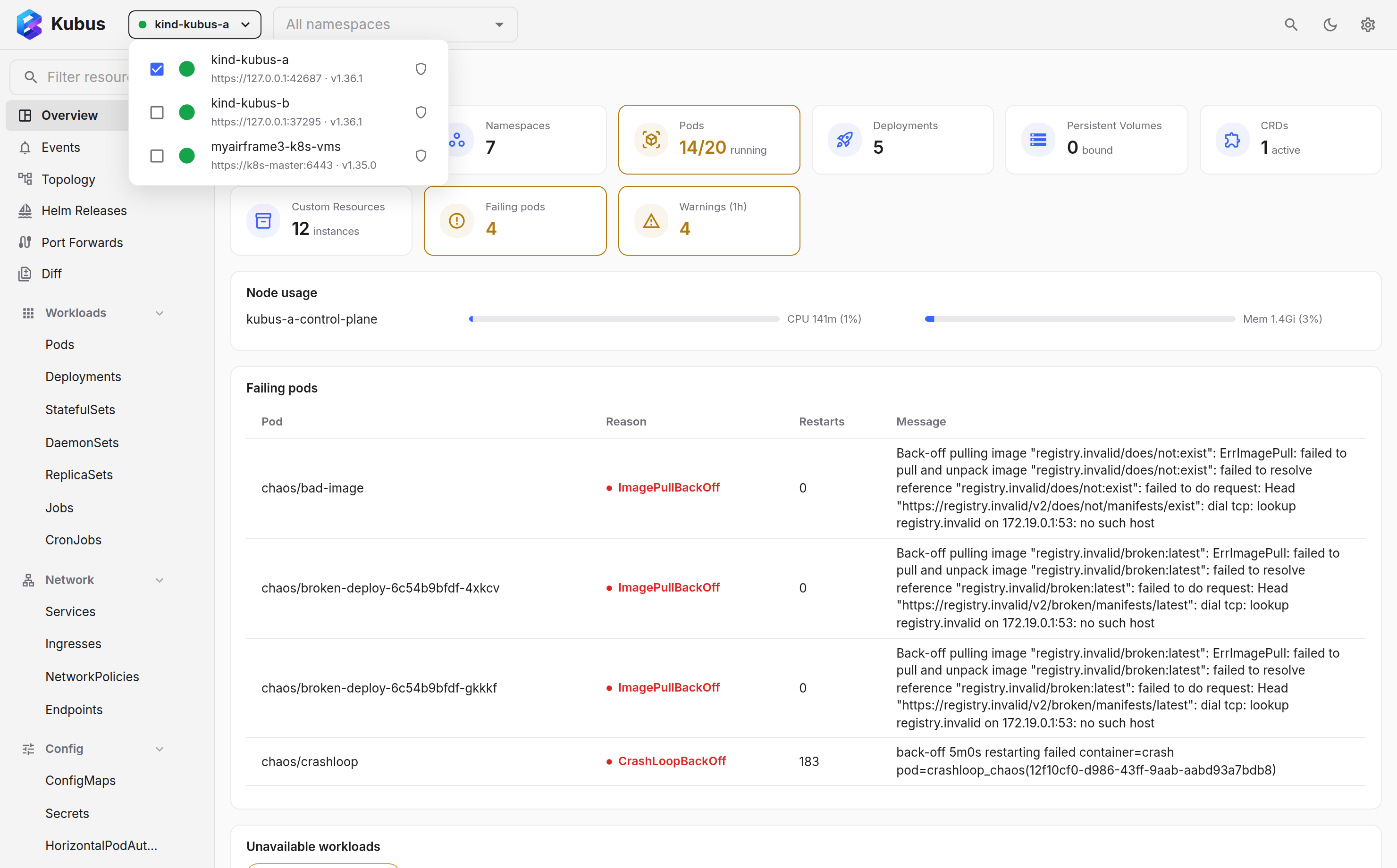
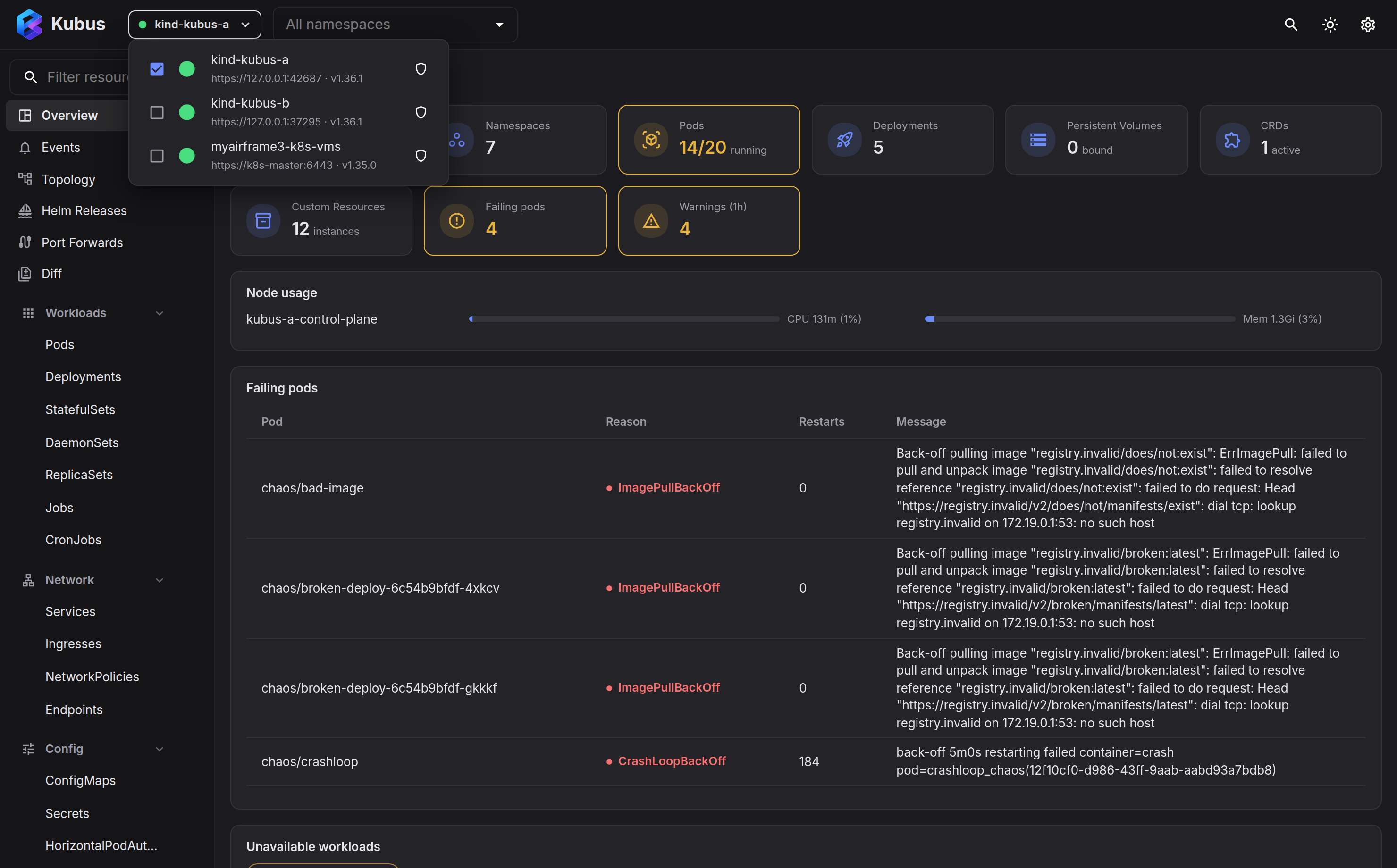
The moment you select clusters, the Overview dashboard fills in: node counts, pod health, failing workloads and recent warnings, per cluster.
3. Browse a resource
Open the left nav and pick a kind, say Workloads → Pods. You get a live list that updates over a WebSocket watch; no refresh button needed. If you selected more than one cluster, a Cluster column tells you where each row lives.
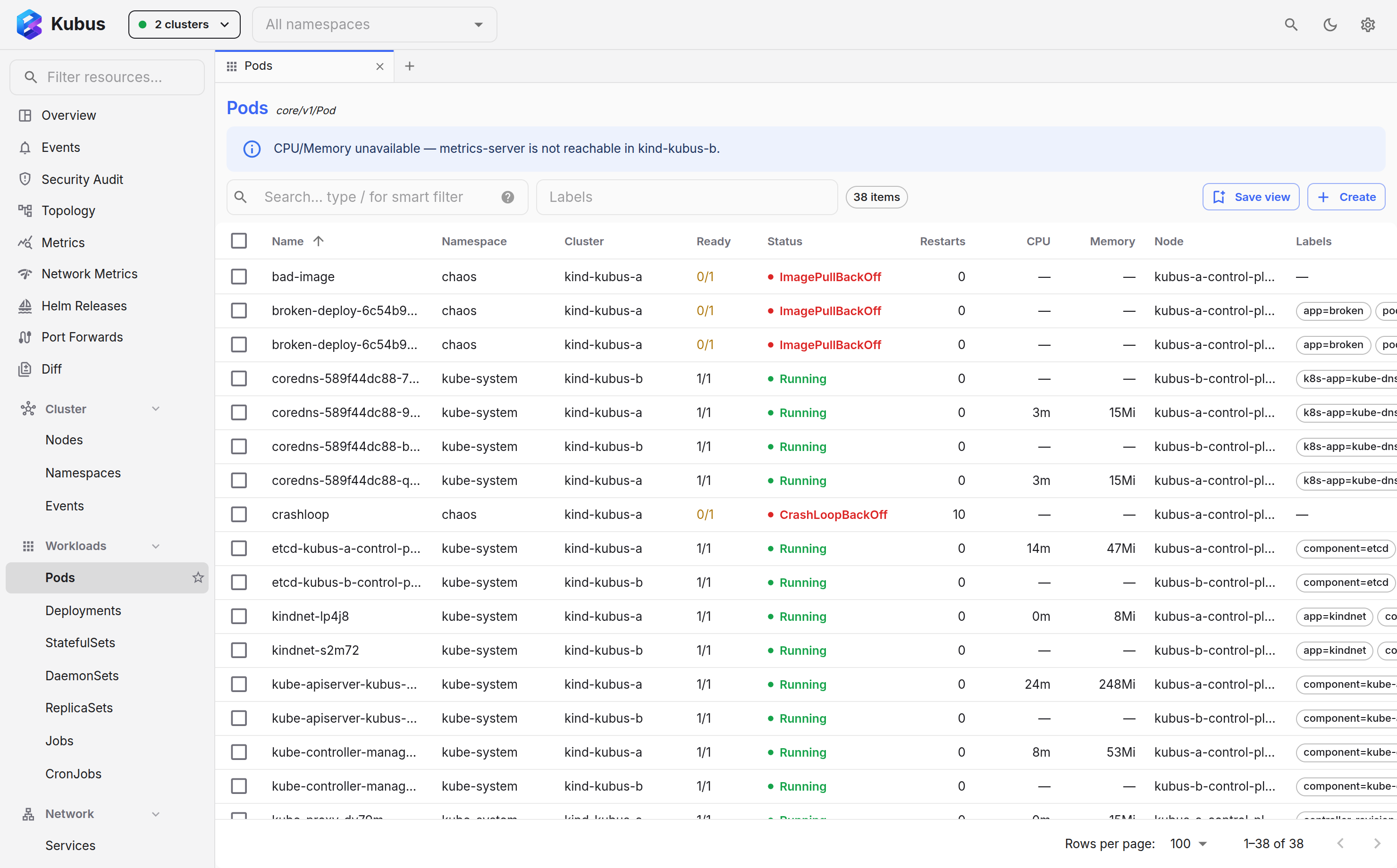
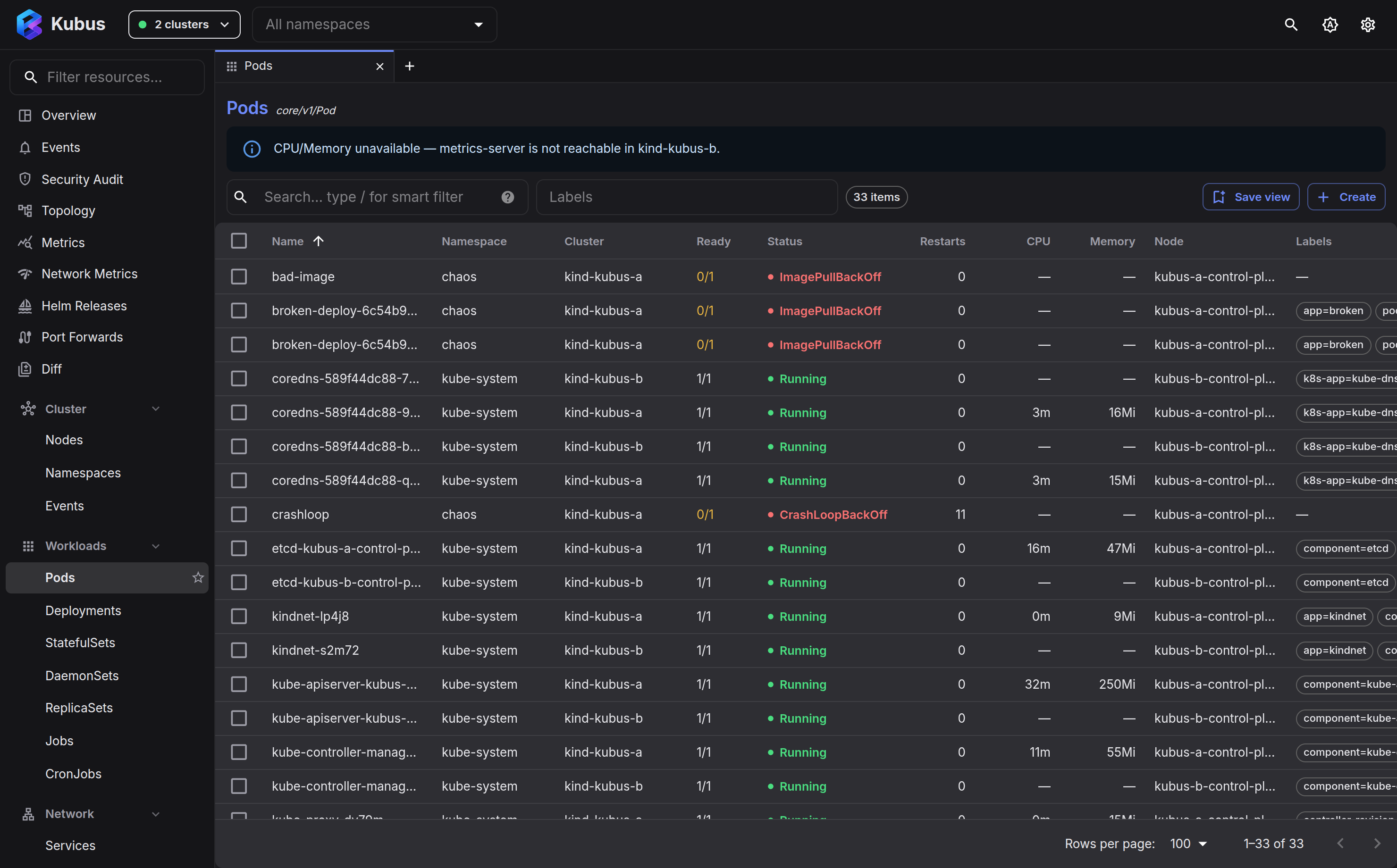
Use the namespace filter in the top bar to narrow things down.
4. Inspect something
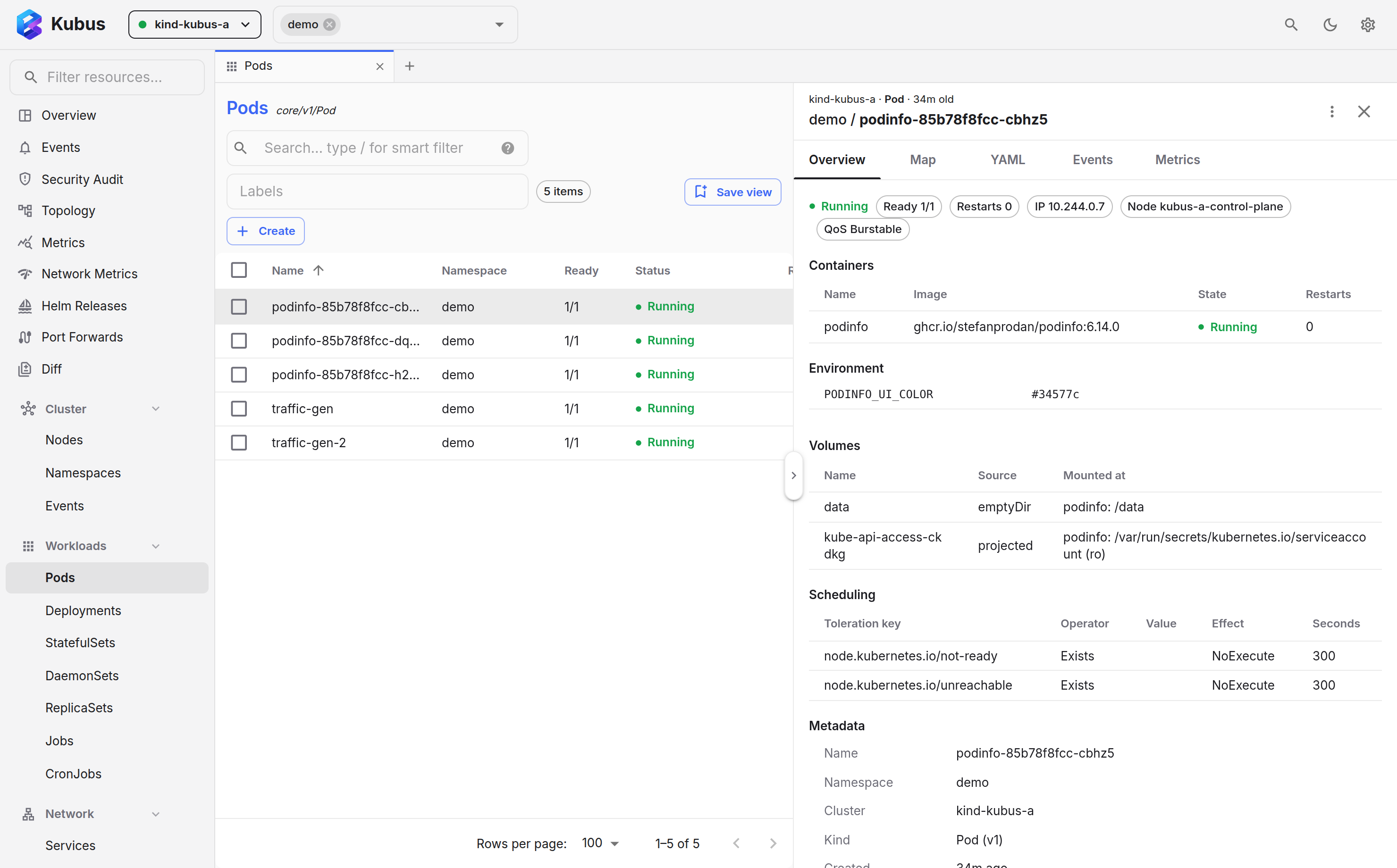
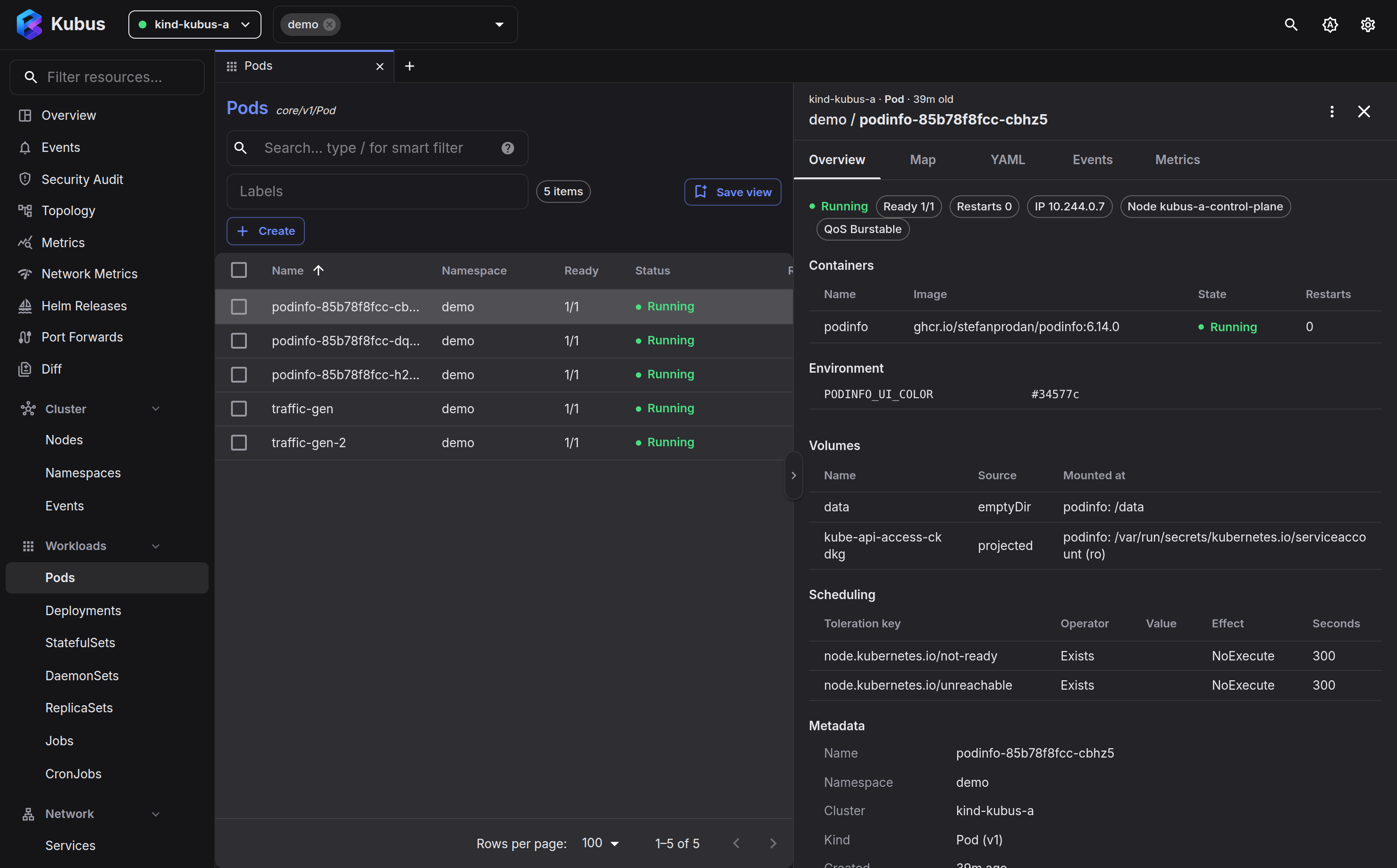
Click a pod's name. A details drawer slides in with:
- an Overview tab with status, containers, images, env, volumes and related objects;
- a YAML tab with a full Monaco editor you can read or edit;
- Events, a relationship Map, and (for pods) live Metrics.
5. Do something
From any row's ⋮ menu (or the details drawer, or the command palette) you can act:
- Logs: stream them, even aggregated across a Deployment's pods
- Shell: open a terminal straight into a container
- Scale, Rollout restart, Roll back
- Port forward, Copy files, Delete
Try Logs on the podinfo deployment, or Shell into one of its pods.
6. Drive it from the keyboard
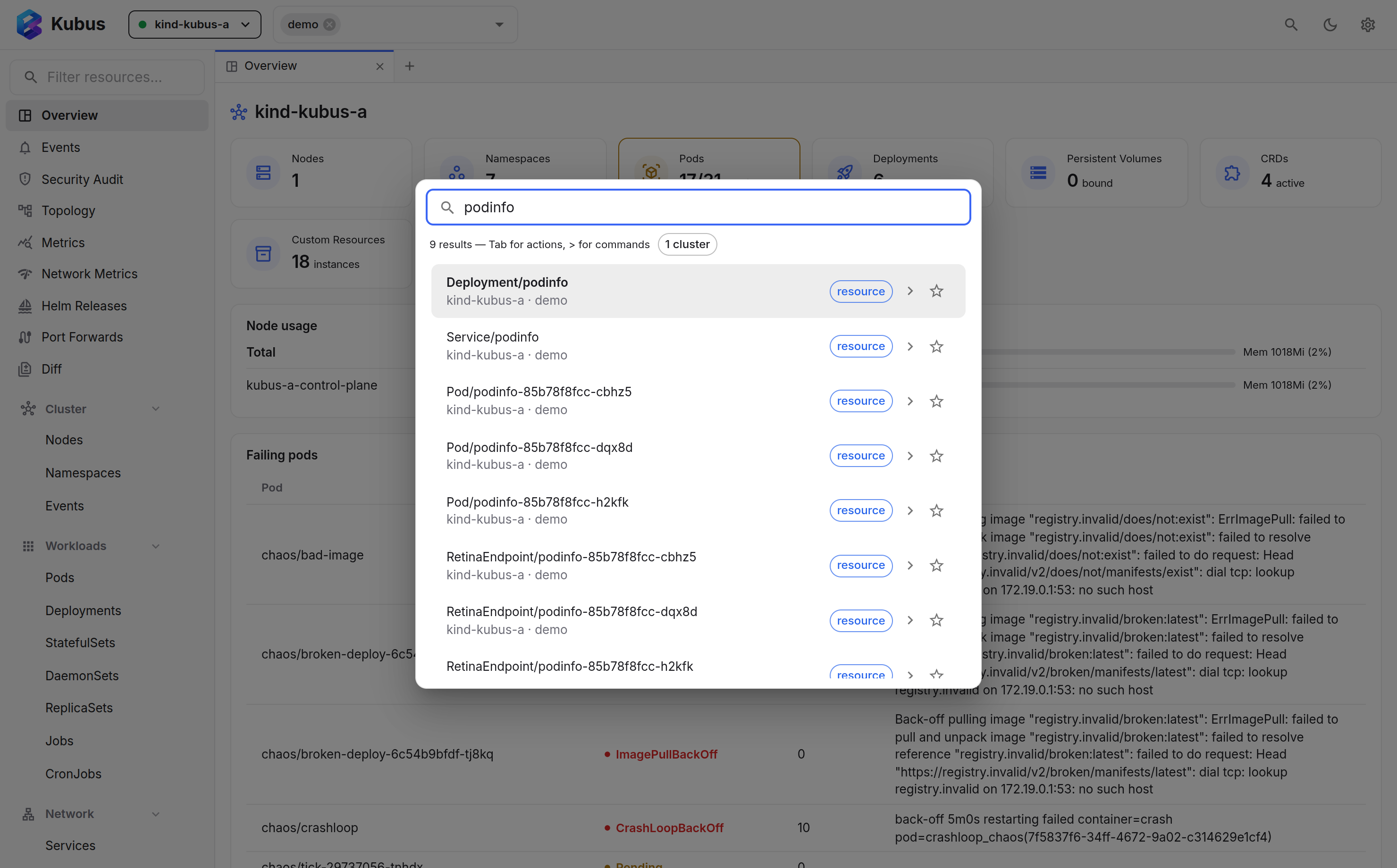
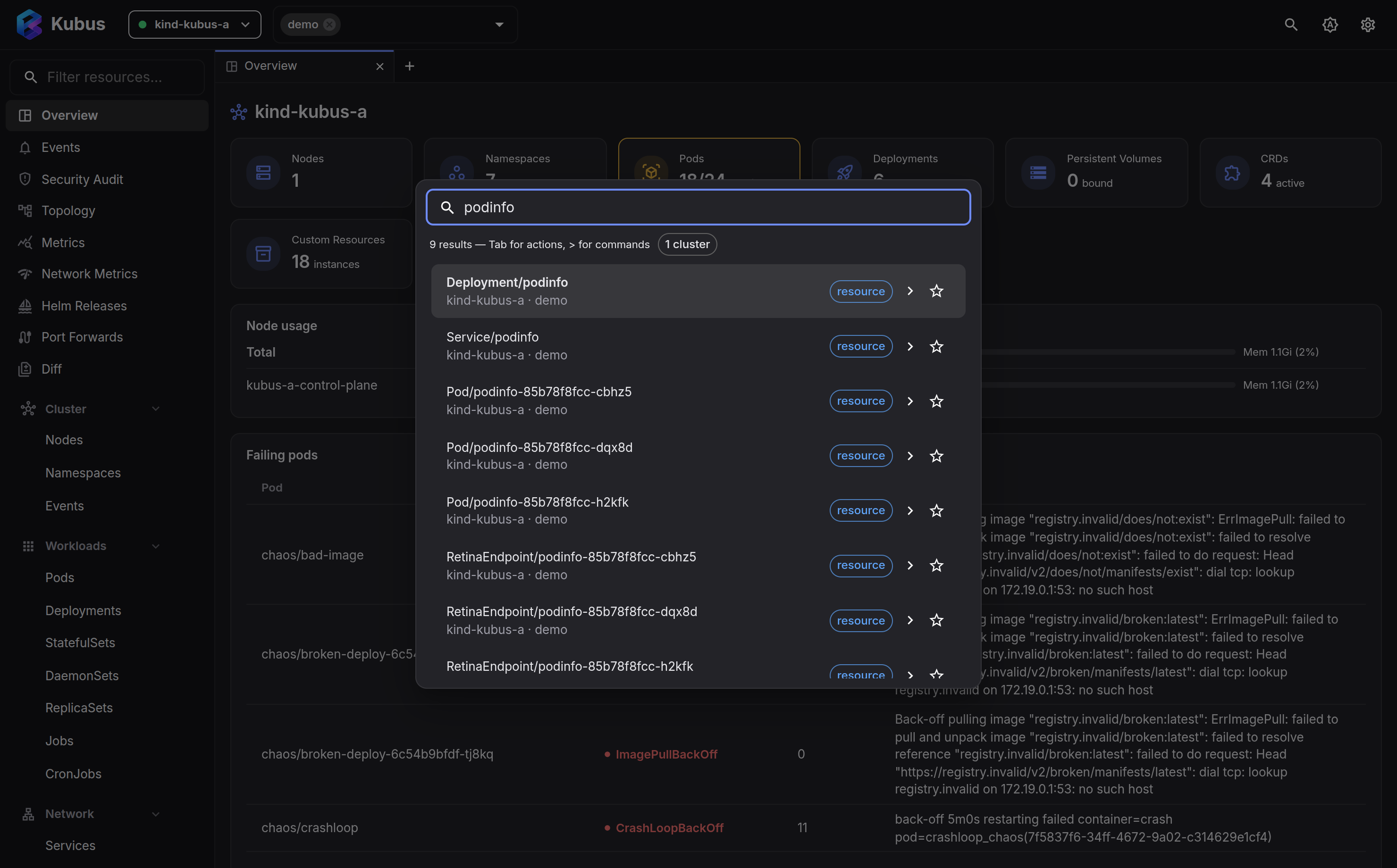
Press Ctrl+K (Cmd+K on macOS) to open the command palette. Type to search
across resources, kinds and pages; press Tab on a result to run an action on it; or
type > to run app commands like Toggle dark / light mode.
Where to next
-
User guide
A feature-by-feature tour of everything Kubus can do.
-
Security model
Exactly how Kubus keeps things local and what the production guard does.